Setting up a Magic Keyboard
Custom Shortcut Key Setup
- CTRL+M for Manual Start (
Strings-->MenuBar-->Event-->ManualStart) - CTRL+E for Next Event (
Strings-->MenuBar-->File-->Next Event) - CTRL+/ for the Edit Split Times dialog (
Strings-->MenuBar-->LapTime-->SplitDialog) - CTRL+SHIFT+D for Did Not Start (
Strings-->Event-->Results-->Status-->Did Not Start) - CTRL+SHIFT+F for Did Not Finish (
Strings-->Event-->Results-->Status-->Did Not Start)
You'll also need to configure the following additional hidden options:
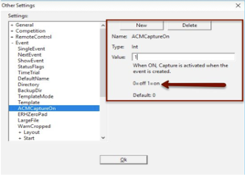
- Under the Event heading, change ACMCaptureOn to "1"
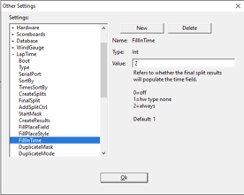
- Under the LapTime heading, set FillInTime to "2" and TotalLaps to "1"
Setting up the Macro Software
Included with your Magic Keyboard is a USB drive with relevant software. One of these items is a simple macro script that ensures that the correct software window is focused before a command is sent. For example, this program ensures that FinishLynx is the active window on your computer before sending the CTRL+M for a manual start.
- From the included USB Drive, run the
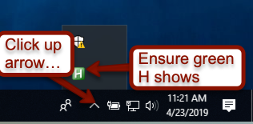
mkhelpersetup.exefile. This installs the small helper tool and schedules a Windows task to run it at startup. It will run the program immediately upon completion. - As a test, restart the computer. If the procedure was successful, you’ll see a green H in the System Tray after you log back in. Sometimes it can take 30-ish seconds to show up after you log in.
Customizing the Keyboard
The keystrokes the keyboard sends may be customized by using the MacroMaster program. The installer file for this program is included on the USB-drive. There is documentation included with the program.
The file that is currently loaded on the keyboard is grahamsplit edit key and DNS-DNF.ckd. There is another file, 1-30.ckd, which will turn the bottom row of blue keys into numbers 26-30.
If you’re defining your own shortcut keys, keep the following in mind:
- Any keystroke (aside from any and all numerical keys) that is intended for FinishLynx should be preceded by
<CTRL>+<ALT>+<SHIFT>+f. This command will trigger the program running in the background to focus the FinishLynx window before sending whatever command you want to send. - Any keystroke that is intended for HyTek should be preceded by
<CTRL>+<ALT>+<SHIFT>+h. This will focus the HyTek window before sending the command.
Key Guide
- WE: (
CTRL+W, CTRL+E) Closes event, opens next event in the schedule. Capture should be on automatically as soon as the new event is open. - SAVE: (
CTRL+S) If this is the first time you’ve saved the event, you will be prompted with the Save As dialog box. - CAP: (
ALT+T) Toggles Capture on and off manually. Useful for the end of an event if you don’t want it to capture any more video but want to leave your scoreboard cycling the results. - 1-25 (white keys): Creates a split and/or finish time for the selected lane/hip number in FinishLynx. Example: To tag the runner in lane 4, position the cursor on the runner’s chest and press the 4. If that runner has laps left, a split will be entered for that runner. If there are no laps left for that runner, the finish time will be recorded for that runner.
- 0-9: A number pad. Nothing special about it. Allows you to 10-key with your left hand.
- Enter: Exactly that. Presses the <enter> key.
- M: (
CTRL+M) Performs a manual start immediately, with no need to press the spacebar. - A: (
CTRL+A) Re-arms the start sensor and resets the running clock to zero. Useful after a recall or incorrect activation of the start sensor (like the starter bonks the sensor). - F: (
ALT+F) Sets the scoreboard to “Finishing Mode,” which will stop the display clock when the first runner crosses the line, and will start showing results on scoreboards as soon as you start tagging runners. - DNF: (
CTRL+SHIFT+F) Marks the selected athlete in FinishLynx as DNF. - DNS: (
CTRL+SHIFT+D) Marks the selected athlete in FinishLynx as DNS. - F3: Types
F3. This will bring times into Hytek from Finishlynx. - Edit Splits: (
CTRL+/) Opens the edit split dialog box in Lynx on whichever athlete is selected in the Results Zone. - Tiebr/JD--score: Click on an event in Run screen in Hytek. Press this key to perform the following, in sequence:
- Does a CTRL+T to break running ties (if it’s a field event, nothing will happen)
- Opens the JD screen and auto-breaks ties (if it’s a running event, it will open the JD screen and close it without changing anything)
- “Re-score” the event (no report will open)
This whole process will take about 5 seconds. I’ve slowed it down on purpose so that the operator can see what changes are or aren’t being made.
Save and WE Usage
Before each race, I select the correct heat that we are running in Hytek. My normal sequence after finishing a race is the following:
- CAP (disable capture and make sure that no more image gets put into the file)
- SAVE (if you have time, you can elect to leave the event open in FL for a while to let the scoreboard results show)
- ENTER (to clear through the “Save-As” screen)
- WE (closes the file, opens the next one to be ready for the next race)
- F3 (switches to Hytek and pulls times in the correct heat that we pre-selected)
