AthleticRUNMEET Check-In Features
RunMeet has the ability to quickly check athletes into their events electronically. This can be used to track participation, scratch athletes who have not checked in, or even quickly seed an event after your meet's check-in window has closed to consolidate heats and prevent empty lanes.
Enable Check-In
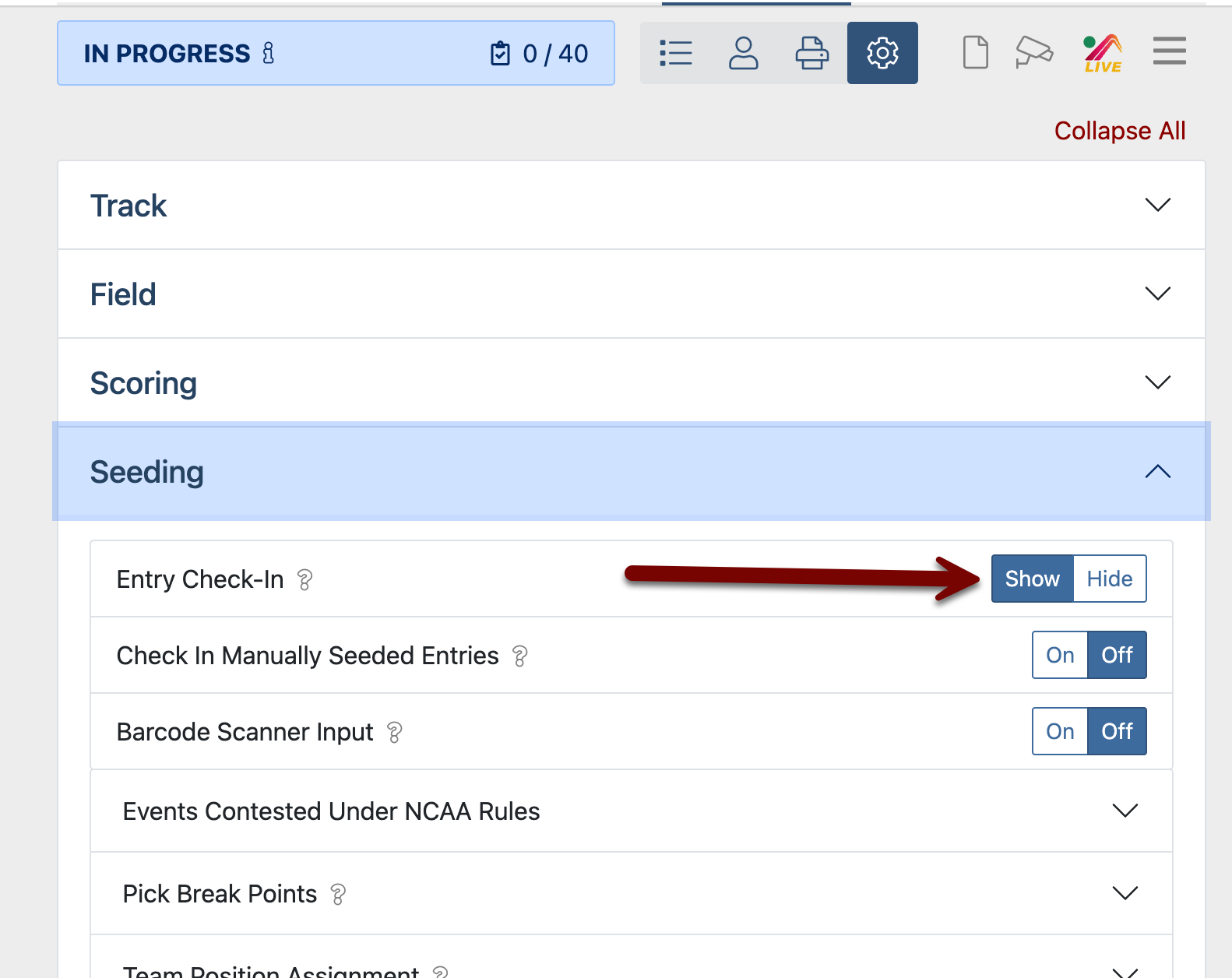
To enable the Check-In feature, select Show from the Seeding section under the global settings. This can be selected either when RunMeet is started, or at any time afterwards.
The Check-In Screen
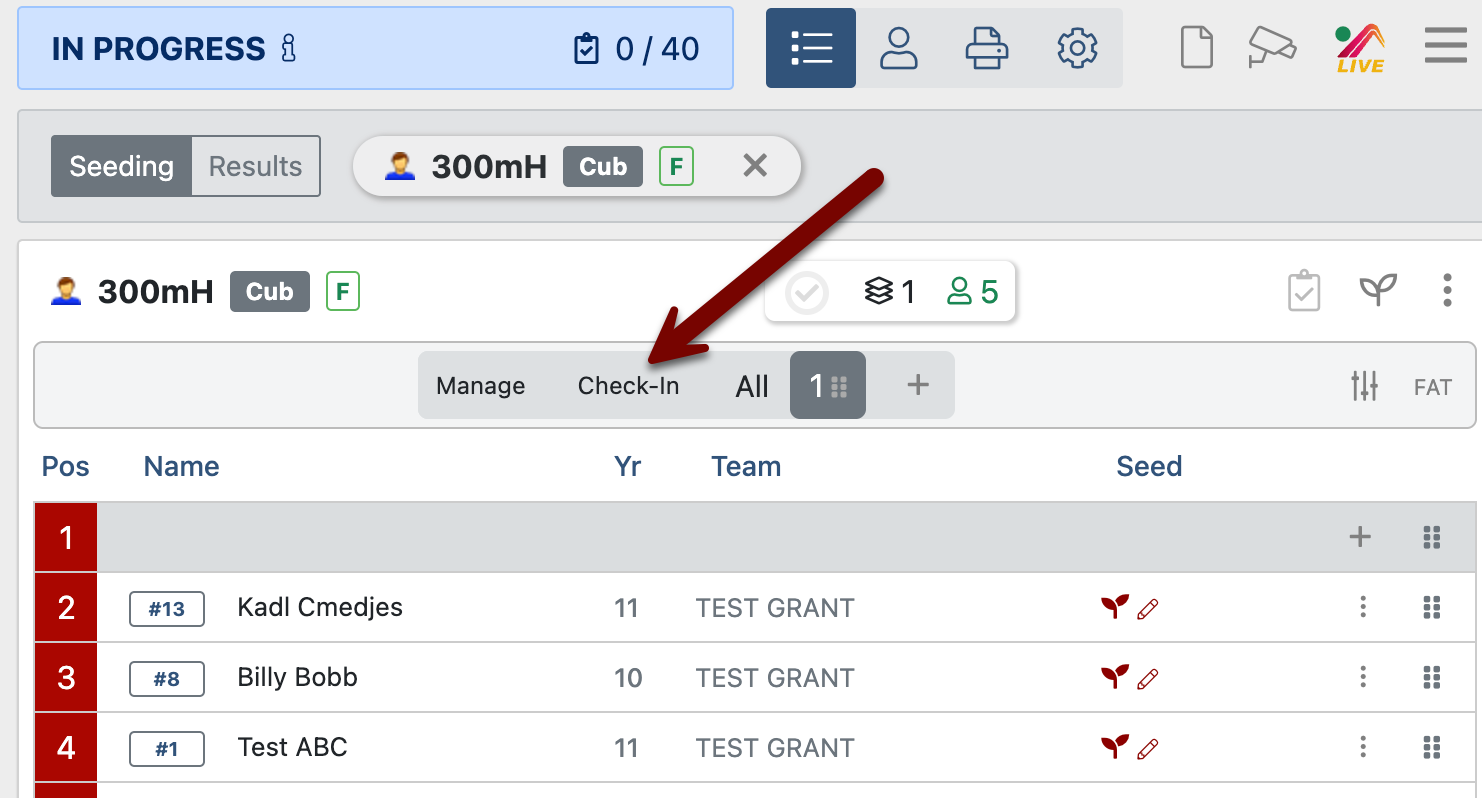
To mark an athlete as checked in, find the correct event, and click Check-In in the top bar for the event.
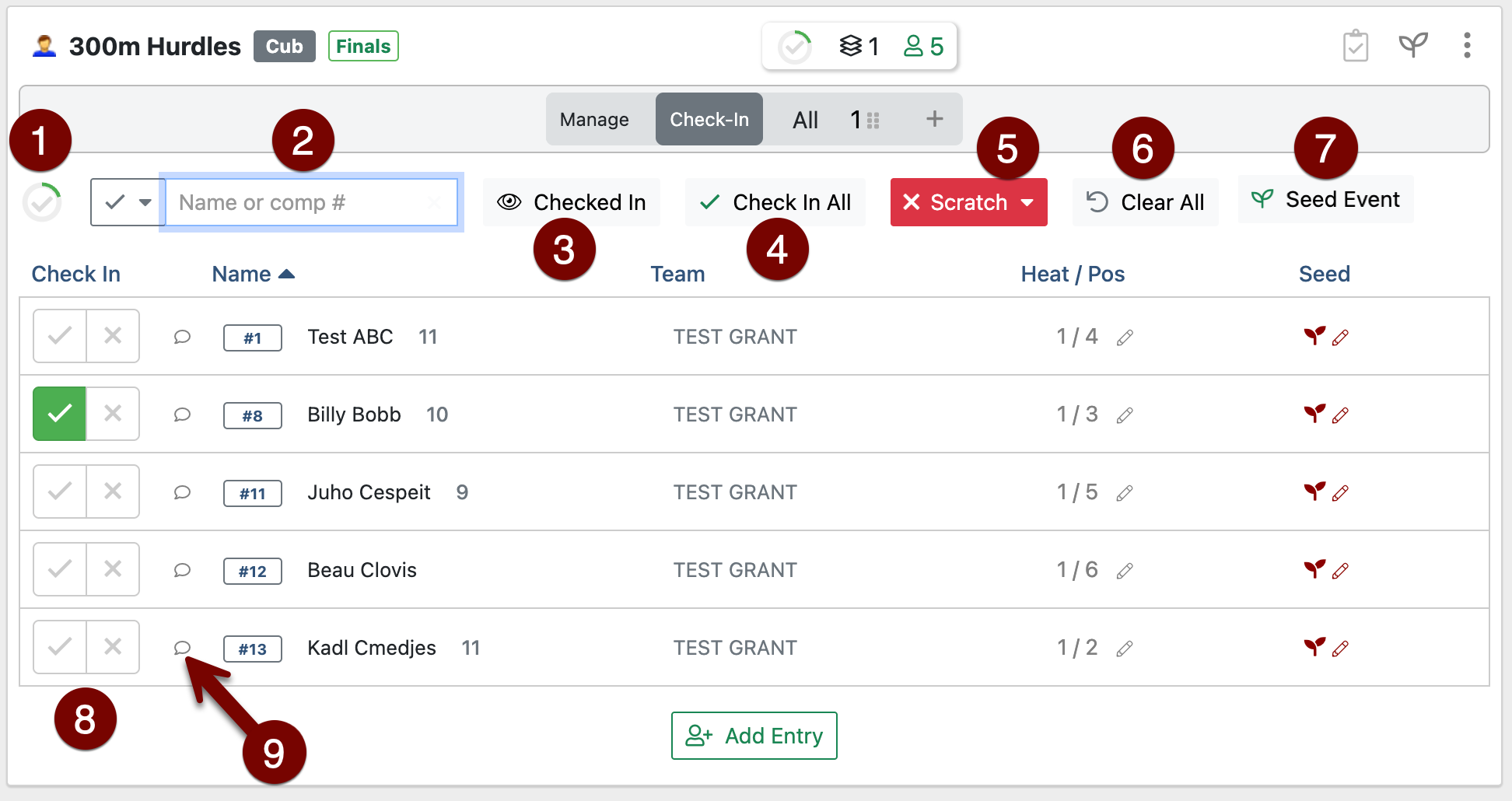
- Progress Ring: Visual indicator of the check-in process. When every athlete has been either checked in or marked absent, the green ring will show a complete circle.
- Search Bar: Type a name or bib number. The drop-down menu to the side of the search bar dictates the behavior:
- indicates that the athlete will be checked-in immediately when you press enter
- indicates that the athlete will be searched for in the list and shown to you instead
- Show/Hide Checked In Athletes: Hides athletes who have already been checked in, to make a cleaner list.
- Check In All: Checks in all athletes currently shown
- Scratch: You may choose to scratch entries not checked-in or scratch all entries.
- Clear All: Resets all checked in and absent statuses
- Seed Event: Seeds the event according to event settings, if it is not yet seeded.
- Check-In/Mark Absent Buttons: Click the to check an athlete in. Click the to mark the athlete absent.
- Check In Notes: Click here to add a check-in note for the athlete on this event. This will be printed on field event sheets and finish line sheets. There is a 6-character limit on this field.
Checking an Athlete In/Marking Athletes Absent
Athletes can be checked in using the buttons (8) shown above, or using the search bar (2). An athlete that is checked in will be indicated by a green check mark. To mark an athlete absent, use the buttons (8) above.
Scratching Absent Athletes
An athlete marked absent is not automatically scratched from the event. To avoid inadvertent errors, you must purposefully scratch all athletes using the Scratch button (5) above.
Printing Check-In Status and Notes on Reports
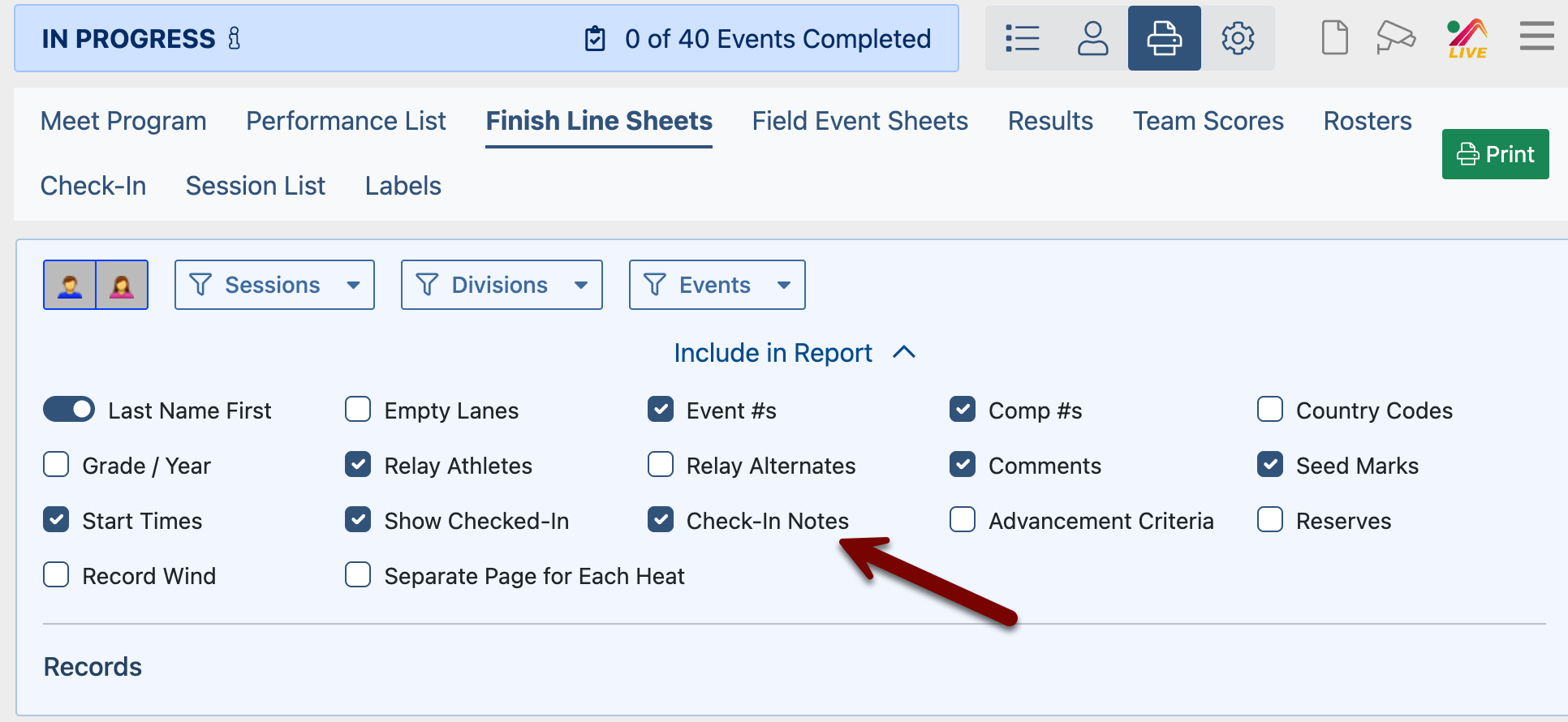
On Meet Program, Finish Line Sheets, and Field Event Sheet reports, you can use the Show Checked-In option under Include In Report to show which athletes are checked in on that report. A check mark will appear next to each athlete that has been checked in.
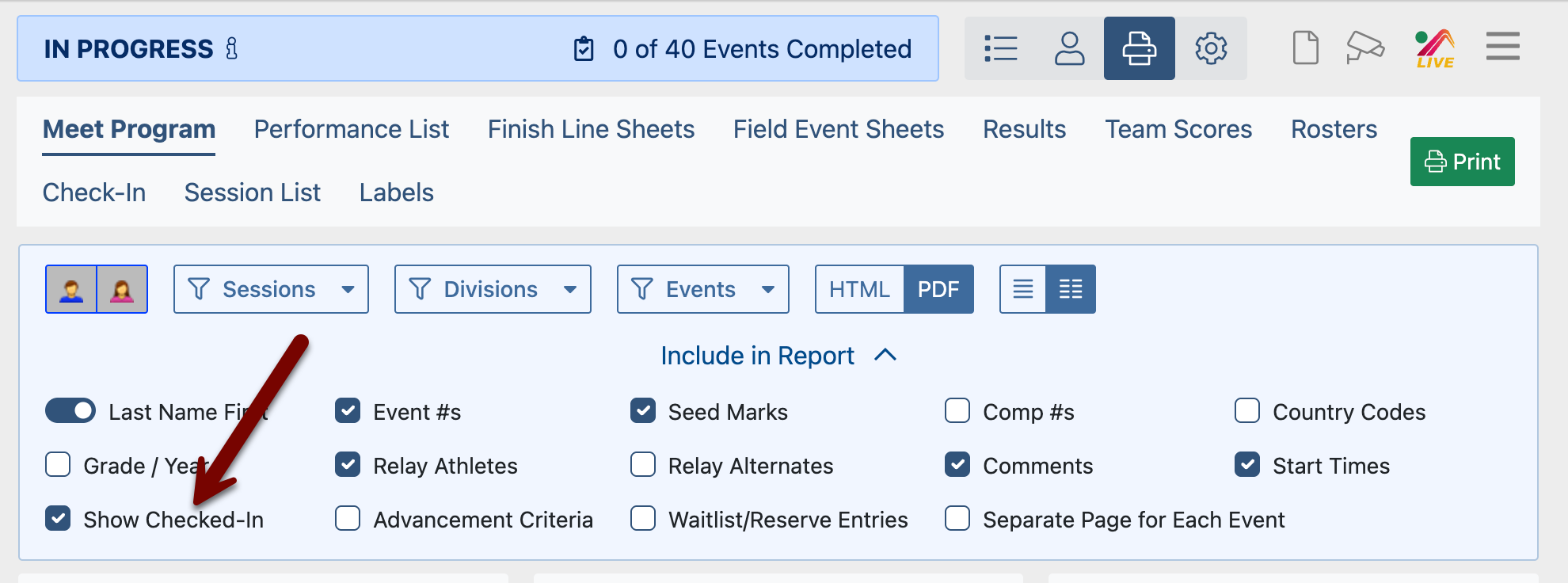
Additionally, you may choose to show the check-in notes on Finish Line Sheets and Field Event Sheets by checking the Check-In Notes option under Include In Report to show notes that were entered for that athlete.