Copy & Bulk Manage Meets
Overview
Copy & Bulk Manage Meets is a tool for Event Managers that gets all of the meets you timed last season set up for this season from one screen. Instead of rebuilding each meet by hand, you can:
- Copy last season's meets into new meets for this season, including their events, blog content and entry window.
- Link each meet to last season's, so meet records carry over from year to year.
- Copy settings onto a meet a coach or meet director has already added for this season.
- Join a meet as its Host or Co-Host.
- Find duplicates on this season's calendar and ask Athletic.net support to merge them.
Each meet is moved along one at a time, so you can do a few now and come back later. Anything you finish or skip is remembered the next time you open the screen.
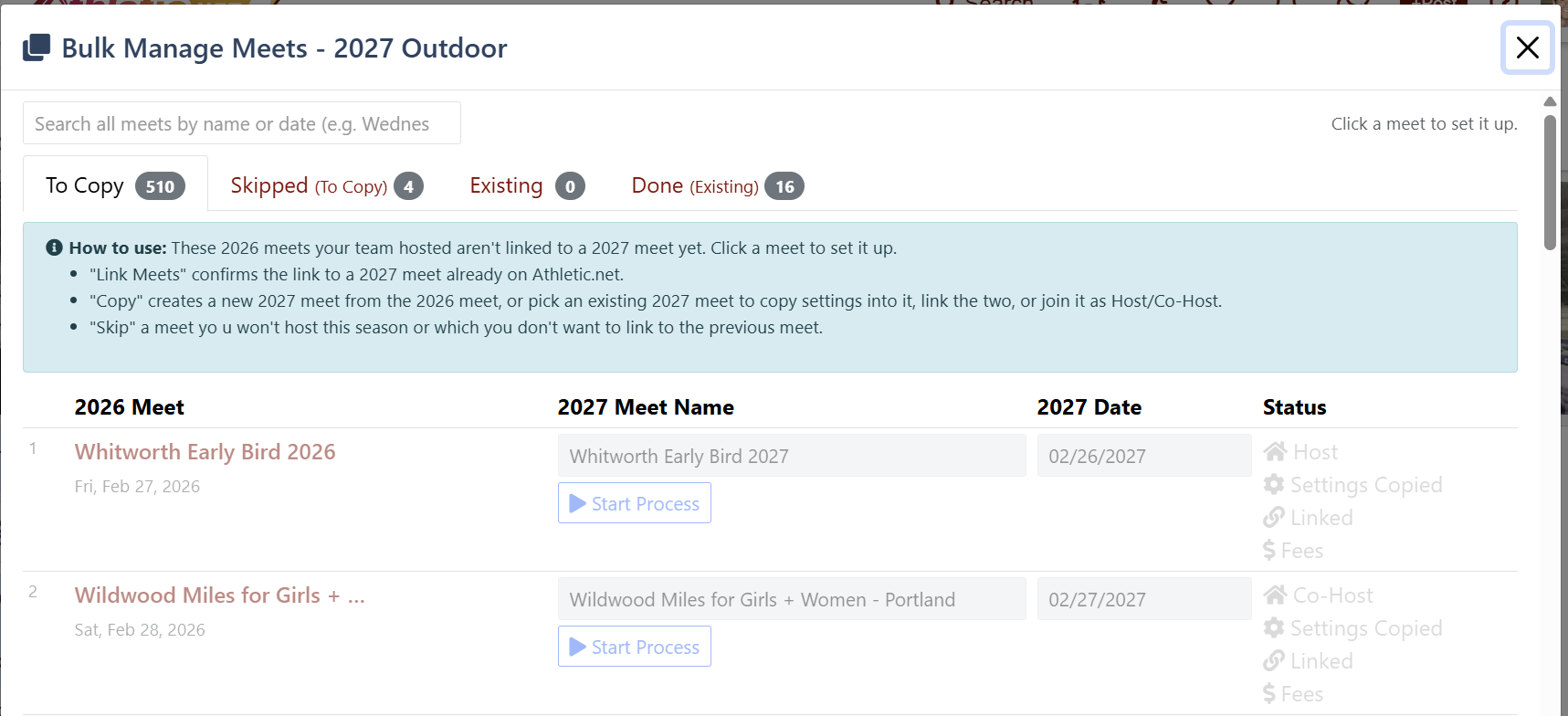
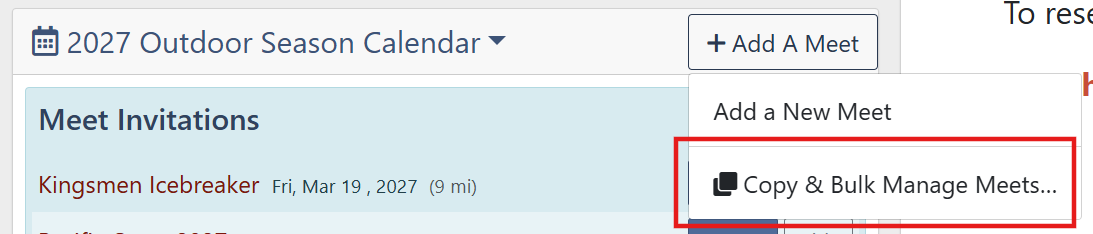
Opening Bulk Manage Meets
- Go to your team's Calendar and select the season you are setting up.
- Click Add A Meet.
- Choose Copy & Bulk Manage Meets…
The window compares the season you picked with the one before it. In this article, last season is the one you are copying from (for example 2025) and this season is the one you are setting up (for 2026). The window uses the actual years.
Finding Your Way Around
Tabs
Tab | What's on it |
To Copy | Last season's meets you hosted that aren't linked to a meet this season yet. Start here. |
Skipped (To Copy) | Last season's meets you chose not to copy this season. |
Existing | This season's meets your team hosts or co-hosts that still need setting up (linking, settings, or a duplicate check). |
Done (Existing) | This season's meets that are linked with their settings copied, or that you marked done. |
Status column
Each item turns green once it's done and stays grey until then.
- Host / Co-Host: your team's role on this season's meet. While grey, it shows the role Copy or Join would give you.
- Settings Copied: last season's setup has been copied onto this season's meet. If the settings came from a different meet, that meet's number is shown under it.
- Linked: the two meets are linked for meet records. Click edit to open the meet records.
- Fees: only shown if last season's meet collected entry fees online. Fees are not copied, so this stays grey until you set them up from Manage.

Copying Last Season's Meets (To Copy tab)
1. Start a meet
Meets on the To Copy tab are faded until you start them. Click the meet (or its Start Process button). Athletic.net first checks this season's calendar to see whether the meet has been added, for example by a coach or meet director, so that you don't create a duplicate.
2. Check what was found
One of three things will happen:
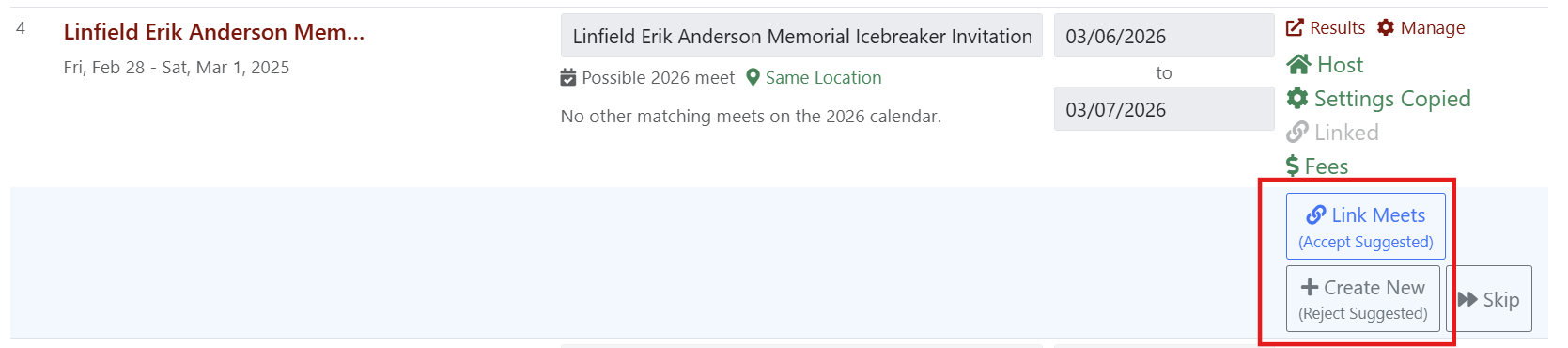
A. A likely match is suggested
If a meet this season was already set up from last season's meet, it is filled in and marked Possible (this season) meet. Look it over, then either:
- Link Meets (Accept Suggested) if it's the right meet, or
- Create New (Reject Suggested) if it isn't, so you can copy a new meet instead.
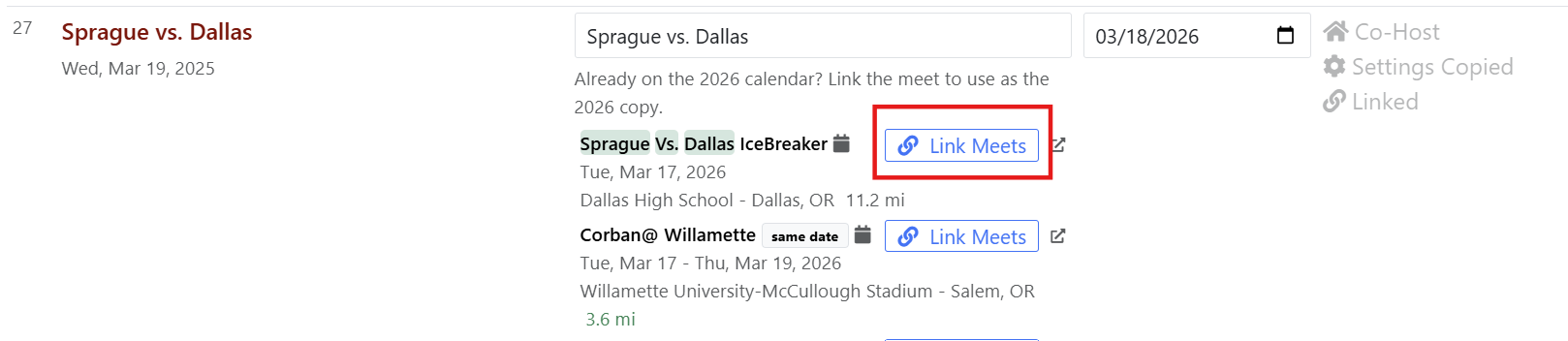
B. Similar meets are already on this season's calendar
A list of possible matches appears under the meet name. Each one shows its date, location and distance from last season's meet. Words it shares with the meet you're copying are highlighted. If one of them is this season's meet, its Link Meets button. You can then copy settings onto it or join it (see Using a meet that's already on the calendar).
C. Nothing is found
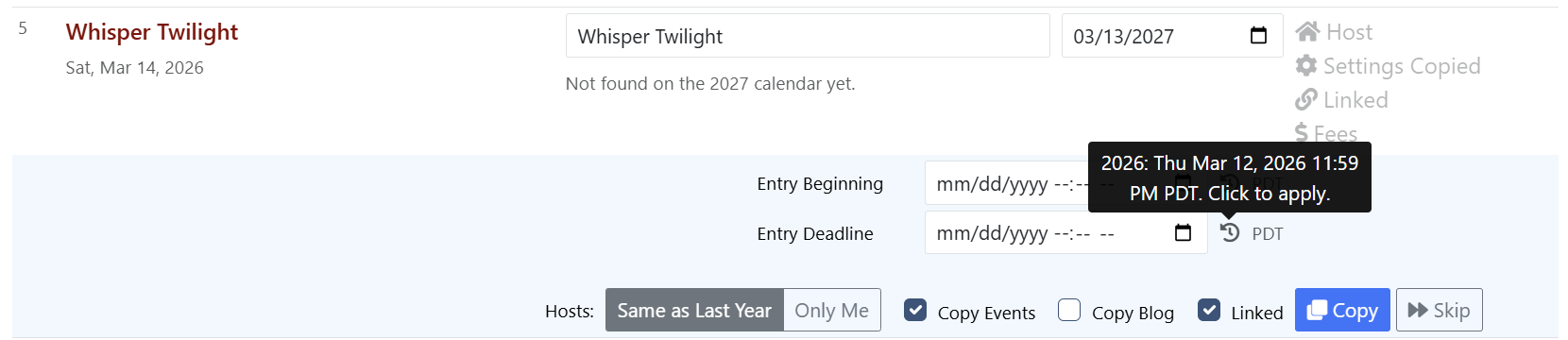
You'll see "Not found on the (this season) calendar yet." That means it's safe to copy a new meet.
3. Review the details
These are filled in for you. Change anything that's different this year:
- Meet name: last season's name with the year moved up by one (e.g. Spring Classic 2025 becomes Spring Classic 2026).
- Date: the same weekday one year later. Multi-day meets keep the same number of days.
- Entry Beginning / Entry Deadline: when online entries open and lock. These are not over automatically. Click the history icon () next to each one to fill in last season's value, moved to the same weekday and time this year. If you leave them blank, entries as soon as the meet is created and never lock.
- Hosts (only if last season's meet had more than one hosting team):
- Same as Last Year: last season's host and co-hosts, plus your team.
- Only Me: your team is the only host, and the other co-hosts aren't copied.
- Copy Events (Track & Field only): copy last season's event list.
- Copy Blog: copy the meet's blog content.
- Linked: link the meets together so meet records carry over. Leave it checked unless you have a reason not to.
4. Copy
Click Copy. The new meet is created on this season's calendar with the options you picked, and Host, Settings Copied and Linked turn green. Use the Manage link to finish anything else, such as entry fees.
Skipping a meet
If you aren't timing a meet this season, or don't want it tied to last season's meet, click Skip. It moves to the Skipped tab. To bring it back, open the Skipped tab and click Unskip.
Using a Meet That's Already on the Calendar
When this season's meet already exists, these buttons appear on its row.
- Copy Settings: copies last season's setup onto the existing meet, using the options checked on the row.
- Link Meets: links this season's meet to last season's for meet records.
- Join as Host / Join as Co-Host: adds your team to a meet you aren't hosting yet. You must be a host or co-host before you can link the meets. If nobody hosts the meet yet, joining makes your team (or last season's host) its host.
Checking This Season's Meets (Existing tab)
The Existing tab lists this season's meets your team hosts or co-hosts. Each one is matched to last season's meet when possible:
- Suggested: the meet was set up from that prior meet. Link the meets to confirm.
- Picked: you chose the prior meet yourself.
- Click Change to pick a different prior meet, or Search (last season) Meet if no match was found.
Checking for duplicates
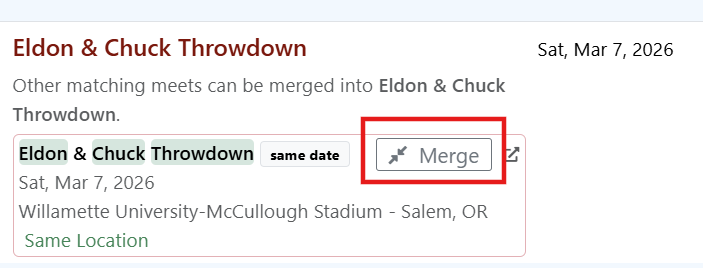
Click a meet (or Check for Duplicates) to search this season's calendar for other listings of the same meet. Meets held on the same day within 10 miles are also listed, even under a different name, and are tagged same date.
If you find a duplicate, click Merge to ask Athletic.net support to merge it into your meet. The button changes to Merge requested.
To check every meet on the tab at once, click Check All Meets for Duplicates in the top-right. When it finishes, turn on Only Meets with Duplicates to see just the meets that need attention.
Marking a meet done
If a meet needs nothing more, click Mark Done in its Status column. It moves to the Done tab. Meets that are linked with their settings copied move to Done on their own. To move a meet you marked done back to Existing, click Undo on the Done tab.
Warnings and What They Mean
- Yellow-highlighted date: this season's meet is more than a week away from last season's date a year on. Make sure the two are really the same meet.
- Green distance (e.g. 0.3 mi): the two meets are within 5 miles of each other, which is a good sign they may be the same meet.
- Highlighted words in meet names: the words that match (or differ) between the meets, so name changes stand out.
- calendar icon on a possible match: that meet is already on your calendar but isn't linked yet.
- "copied" badge when picking a prior meet: a meet was already copied from it this season but never linked.
- "Also the (last season) meet of N other meets": several of this season's meets point to the same prior meet. That's fine if one meet really was split into several; otherwise they may be duplicates.
Tips
- Work through To Copy first, then use Existing to clean up duplicates and link anything that was added by someone else.
- Always set the Entry Beginning and Entry Deadline; the history icon makes it one click each.
- Entry fees are never copied. If the Fees status is grey, set them up from the meet's Manage page.
- Hover over any button or status for a short explanation, including why a button is disabled.
