AthleticSB Cloud Manager
Online AthleticSB boards allow you to show data from AthleticLIVE on physical boards without the hassle of a local network. Up until November 2024, the only way to set data on an online board was to click the "Set Data" button on each AthleticSB computer during a meet. You still needed physical or remote access to each machine.
It's now possible to set an online board's data without access to the AthleticSB machine, here's how:
- Go to https://live.athletic.net/athletic-sb-controller, click the "Log In" button if needed
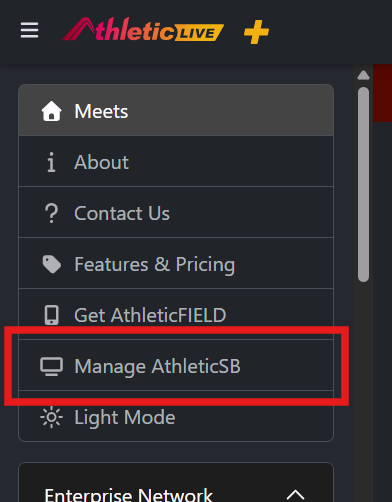
You can also access this page by going to https://live.athletic.net, logging in, and clicking "Manage AthleticSB" in the sidebar
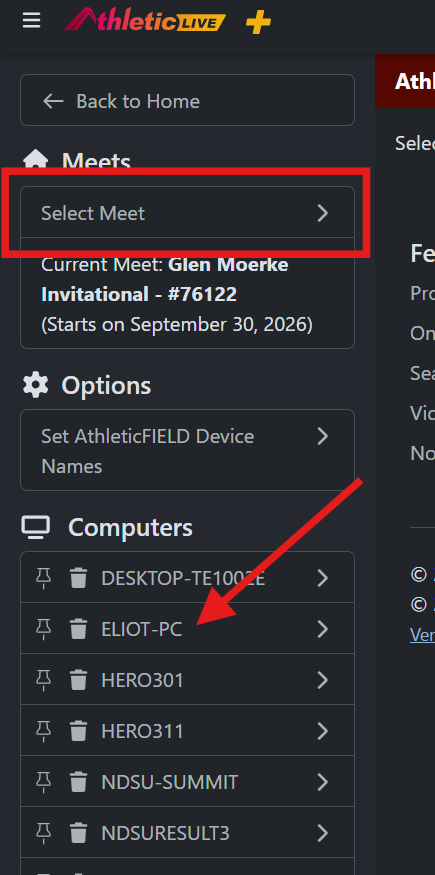
- Click "Select Meet" in the sidebar to select your meet
- Choose a Computer in the sidebar, you should see all online boards on that computer
- The thumbtack icon next to each computer can be used to pin computers to the top of that list (computers are only pinned for the current browser you are on)
- The trash icon next to each computer can be used to remove an old computer from showing up, if you accidentally delete a computer, just reopen AthleticSB on that computer and refresh your browser to add it back in
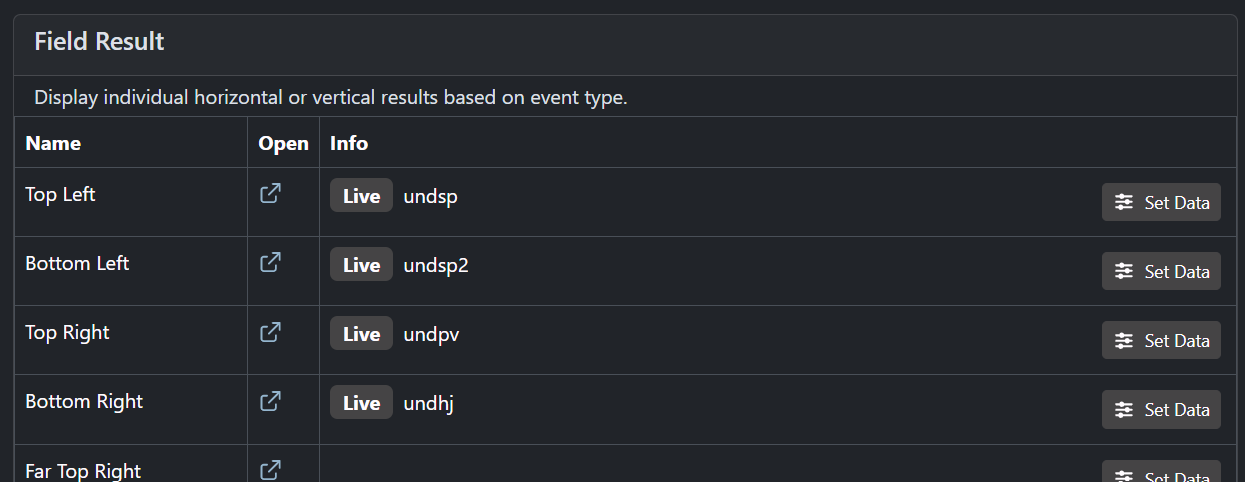
- Click the Set Data button just like you would on the AthleticSB app
- For most boards, there is only the option to set data just like in AthleticSB
- For boards that show data for the meet overall instead of a specific event (like Live Track Standings) there is a "Set Meet" button.
- If the board shows "Not Displaying Current Meet" that means that board is showing data from a meet different than the one you have selected right now
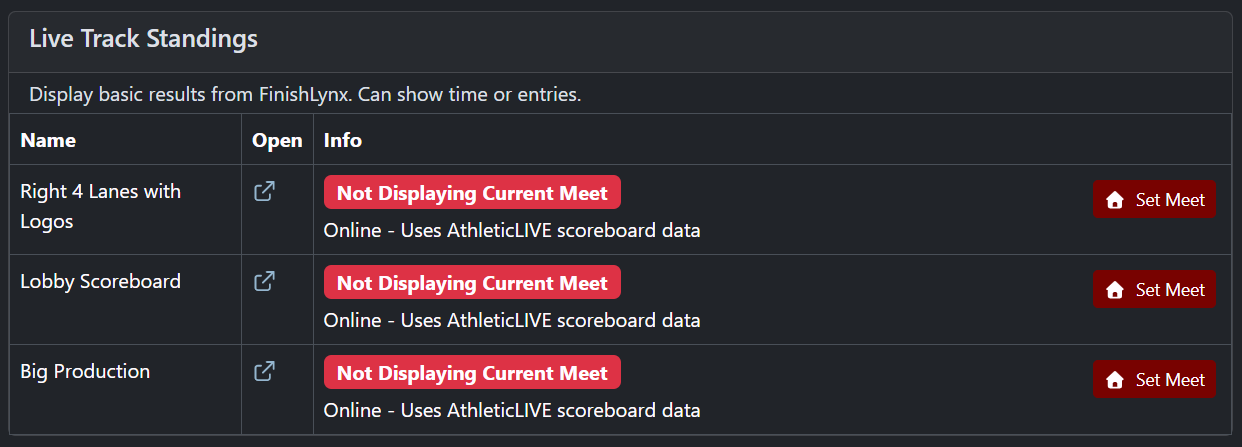
- After clicking "Set Meet" the text should change to green "Displaying Current Meet" which means data from the meet selected in the sidebar is being shown on that board
- If the board shows "Not Displaying Current Meet" that means that board is showing data from a meet different than the one you have selected right now
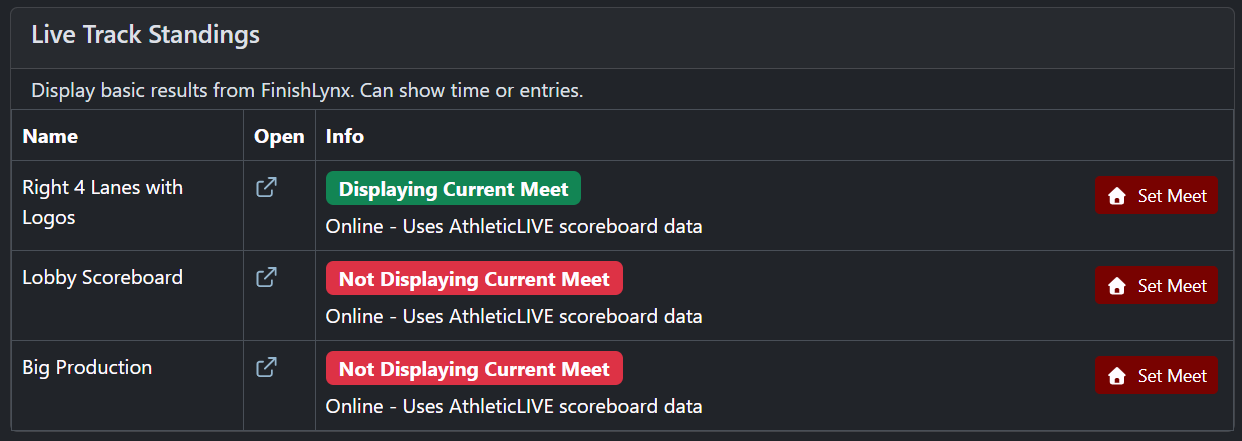
Note: Click the icon to open the board in your browser! This link can be used on any computer with internet access.
