The AthleticFIELD Expansion Module
The AthleticFIELD Expansion Module is a hardware unit that makes the cabling simple, tidy, and professional to hook up both an ultrasonic, Lynx-style wind gauge and a total station to your AthleticFIELD mobile device, while maintaining the device's battery through a long day of competition. Order one at the Timers Tools page in our store.
Compatibility
Mobile Devices
The AthleticFIELD Expansion Module is compatible with Android mobile devices equipped with a USB-C port and running Android 11 or newer.
Total Stations
The AthleticFIELD Expansion Module is compatible with the following total stations:
- Mato MTS 602
- Sokkia Set5x series
- GoWin TKS 202
- South Station NTS-352R
Wind Gauges
The AthleticFIELD Expansion Module is compatible with "Lynx-Style" ultrasonic wind gauges with a 3-pin XLR connection.
Unpacking
The AthleticFIELD Expansion Module ships with the following items:
- The expansion module itself
- A charging cable
- A weatherproof USB-C cable. This will connect the expansion module to your mobile device.
- A weatherproof 3-pin to Hirose bayonet connector cable. This will connect the expansion module to a total station.
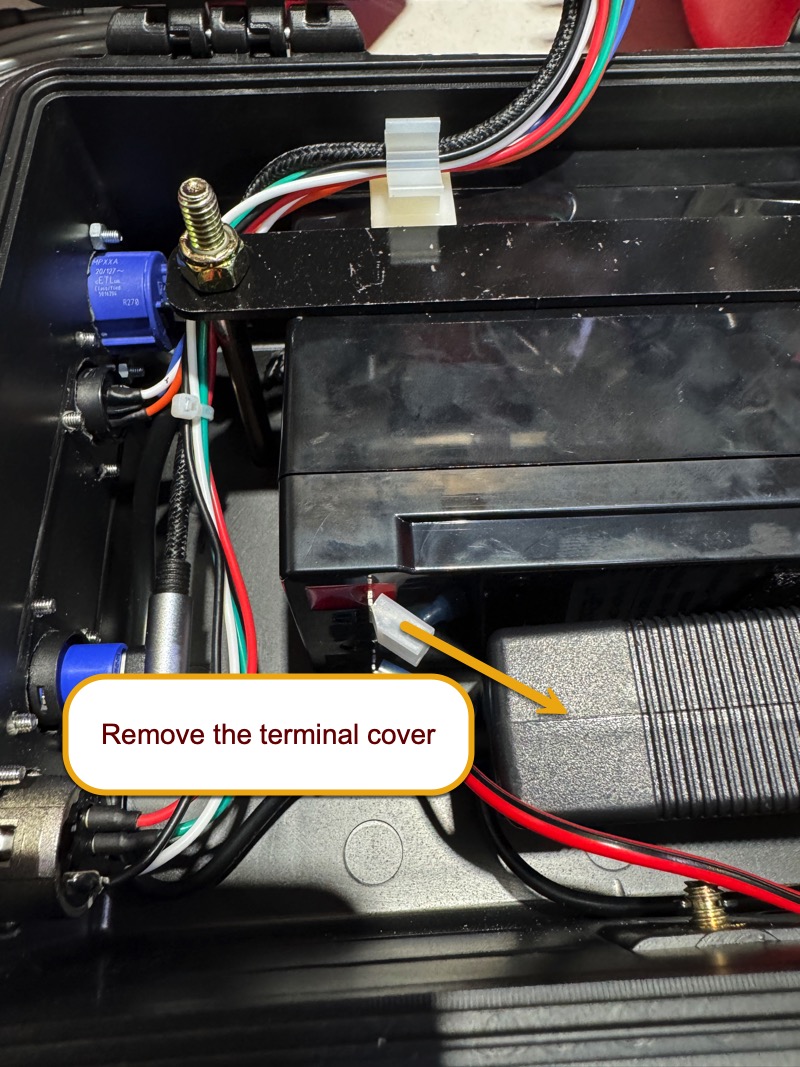
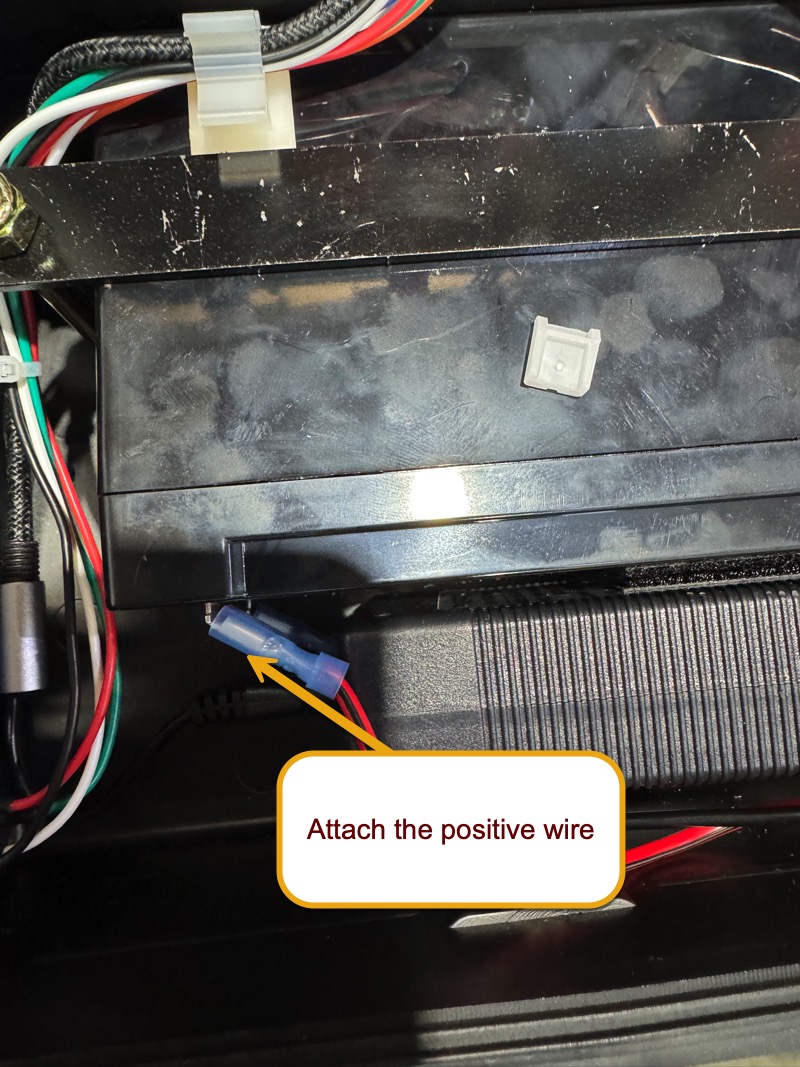
Once you've unpacked all items from the box, open the expansion module itself, remove the protective terminal from the positive battery terminal, and attach the red positive wire to the battery terminal.
Battery Life and Charging
The Expansion Module's battery has been tested to provide in excess of a 48 hour battery life. That means it powered a tablet with the screen at full brightness and locked to "on"--plus a wind gauge--for 48 hours straight. It should easily last you a full day of competition. We simply recommend charging it overnight before and between competition days.
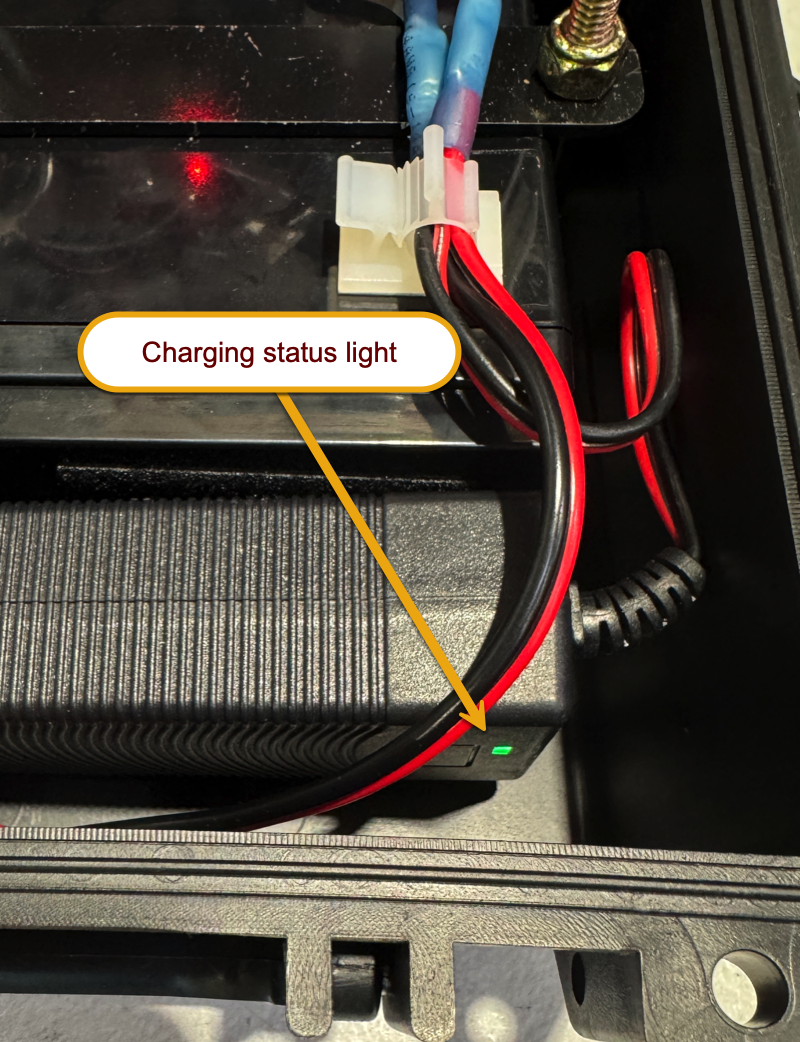
The Expansion Module's internal battery ships charged. To charge the battery, connect the included power cable to a wall outlet and the expansion module. The Expansion Module takes approximately four hours to charge a battery from fully discharged. You can check the charging status using the LED on the charger inside the case. A red light indicates charging in progress, and a green light indicates a full charge. This light's indications are only valid while a charger is connected.
Physical Setup
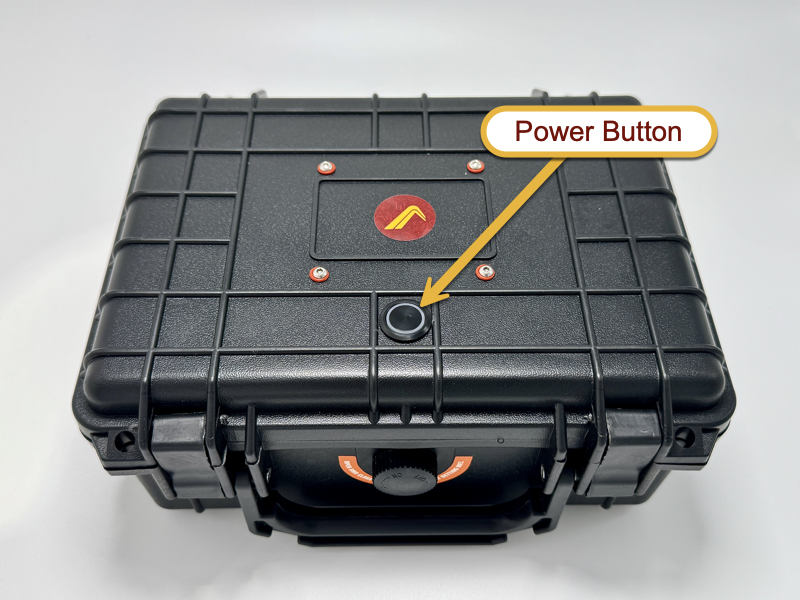
- Turn the unit ON using the power button in the lid.
- Attach the included USB-C cable to both your mobile device and the USB-C port on the side of the Expansion Module. Your mobile device should begin to charge.
- If you're using a total station, attach it to the Expansion Module with the included Hirose to 3-pin cable. If you're using a wind gauge, attach it to the Expansion Module with the XLR cable that came with your wind gauge.
Software Setup
Configuring AthleticFIELD to use the Expansion Module is very similar to configuring it for a total station or wind gauge without the Expansion Module. See Laser Measurement and Using a Wind Gauge for Horizontal Jumps.
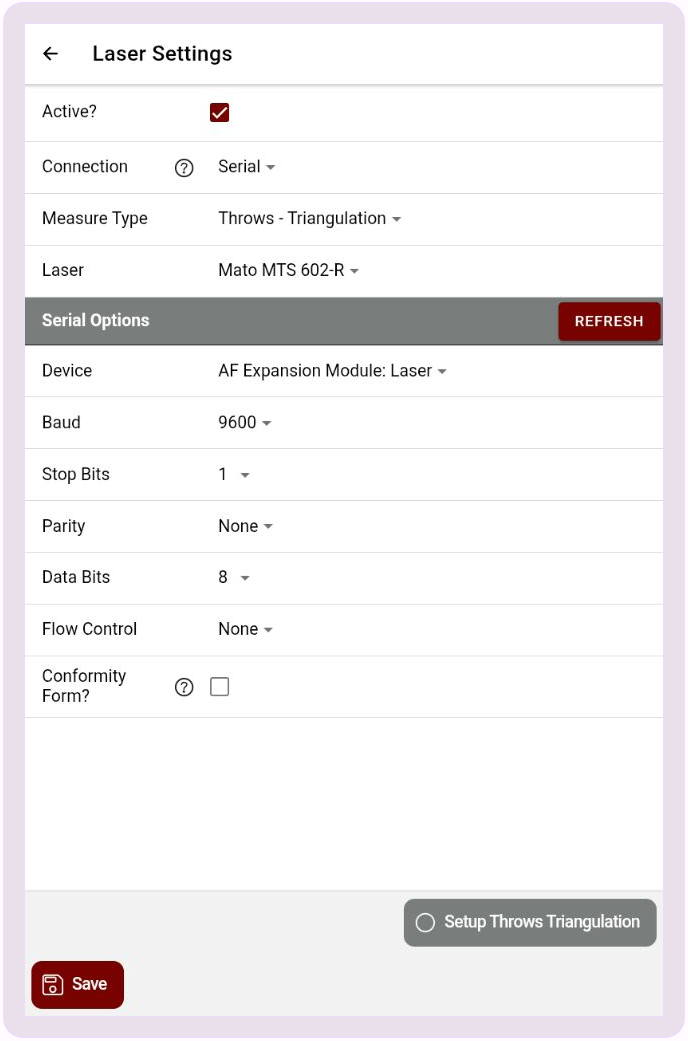
For both wind gauges and total stations, you'll select Connection: Serial and then continue with the rest of your setup.
For lasers, when you select a device, choose "AF Expansion Module: Laser" for your laser measurement device. The serial settings will default to the correct selections for your total station.
For wind gauges, select Wind Gauge: Lynx. Choose Controller: In App, and select "AF Expansion Module: Wind" for the serial device.
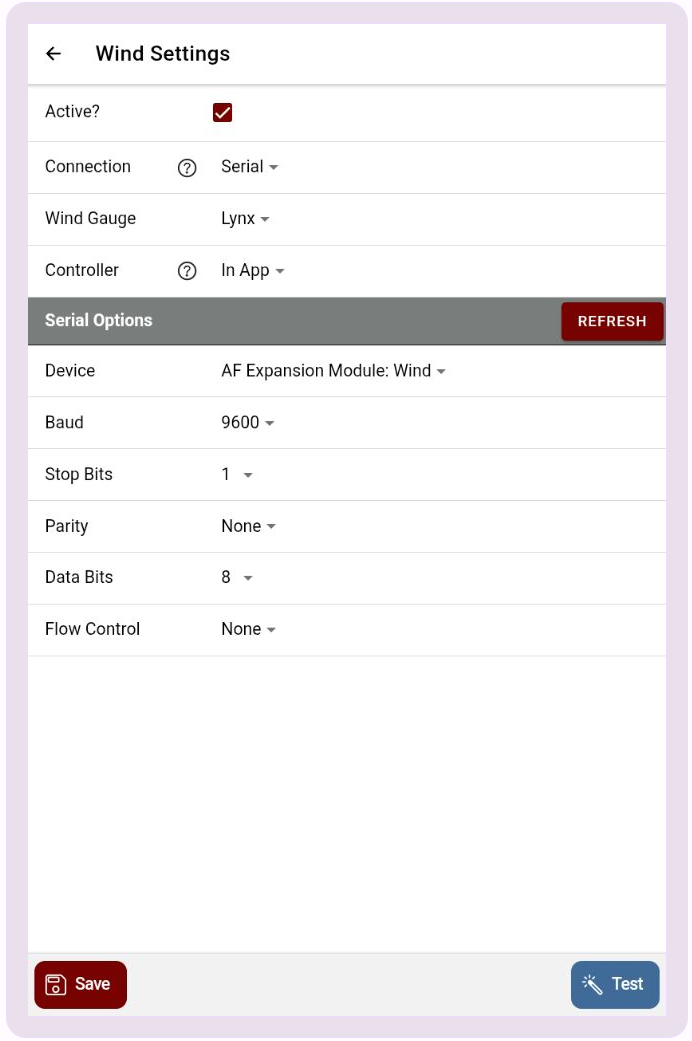
Ensure a successful test of both devices before starting your event.
Troubleshooting
The AthleticFIELD Expansion Module has been designed to be simple and robust. During pre-event testing, if you run into problems where you don't get data returned from your devices try the following steps:
- Unplug the Expansion Module from your mobile device.
- Turn the Expansion Module off and back on again.
- Reconnect the Expansion Module to your mobile device.
- Press Refresh on the Laser/Wind settings screen and re-select the correct serial device (either Expansion Module: Wind or Expansion Module: Laser)
