8. Timer Training - FinishLynx and Tagging Protocol
1. Open the Program
- Double-click the FinishLynx icon on your desktop.
- Wait for the program to load fully before proceeding.
- Sometimes error messages or Serial confirmation messages pop up. Cancel through them if necessary. Ask for Serials Codes if needed!
2. Check General Settings
- Go to Options > Preferences.
Verify camera network, event directory, input and output directories, alive scoreboard, wind, and laptime settings.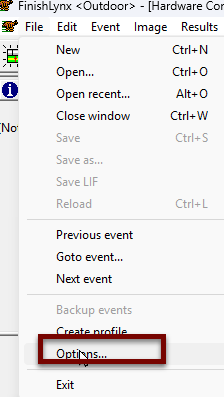
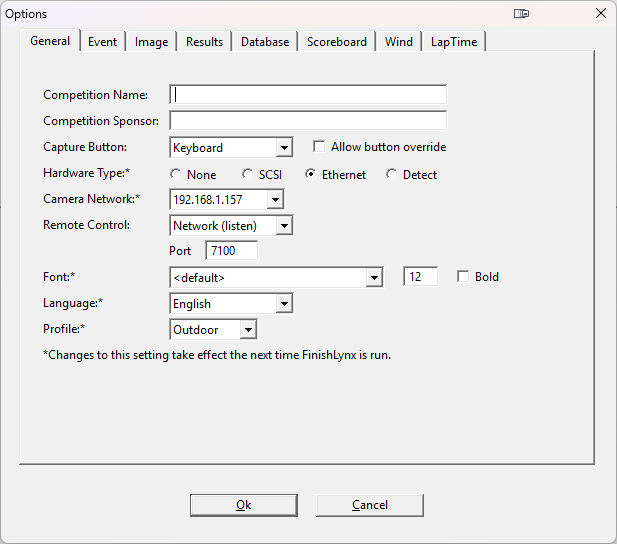
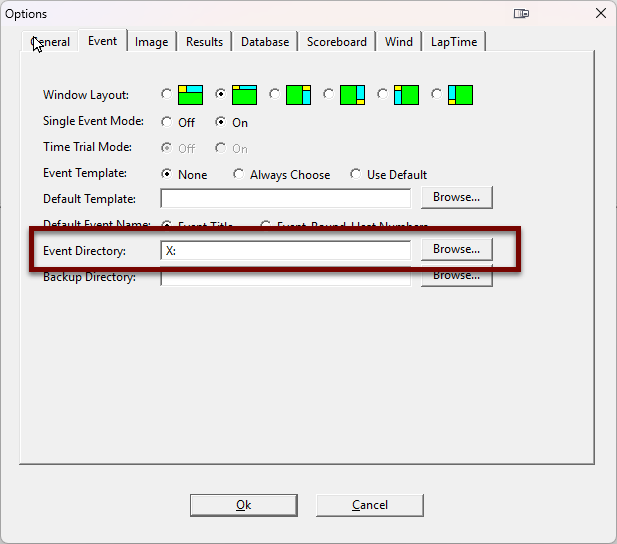
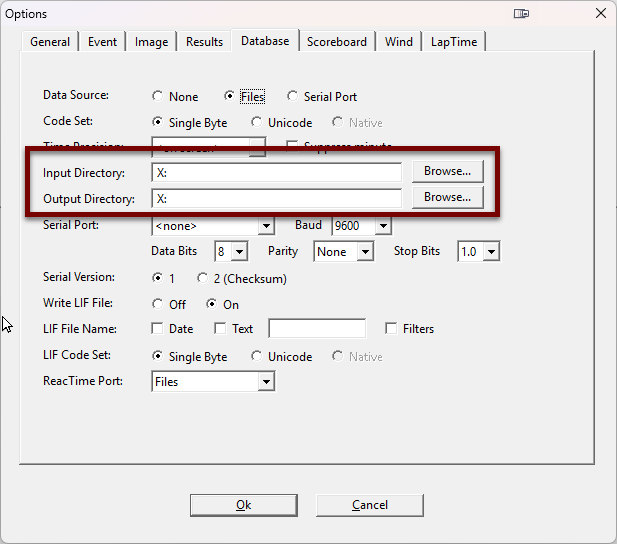
- Ensure the event/input/output directories points to the correct results folder (we usually use this as the X:/ Drive).
3. Connect to the Network
- Confirm the camera and computer are on the same network (static IPs recommended).
- In Hardware > Cameras, check that your camera(s) appear.
- If not, verify cables, power, and IP settings. Restart Lynx.
4. Confirm File Locations
- Go to File > Options > Directories.
- Make sure Results, Images, and Backup directories are set correctly.
- This ensures results save where you expect.
5. Load Cameras
- Typically load the cameras in order. Vision first, Identilynx second. Reverse cameras after that.
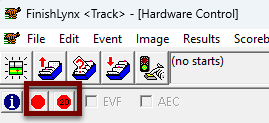
- Video feed should appear in the main window. Use the two red preview buttons when aligning.
6. Align the Camera
- Physically adjust the camera to be perfectly perpendicular to the finish line.
- Ensure the 2D preview capture matches the finish line.
7. Load Races
- Use File > Goto Event from your meet management software (evt/ppl files).
- Verify heat numbers and race names are correct.
8. Tag Athletes
- As athletes cross, click on the runner’s image and type or select their bib/ID (XC) or lane (TF)
- Proper Tagging Protocol:
- Tag immediately after confirmation.
- Start with the winner and work your way from first to last.
- Double-check before advancing to the next runner.
- Do not rush—accuracy beats speed. Make sure your lines are on the torso correctly.
- Why it matters?:
- Imagine being at a championship race, and you are timing out of order. 1st place pops up, the crowd goes wild, but its the wrong athlete, and the times shuffle in order from lane 1 to lane 8.
- Your tagging inconsistently, and compiling heat results leads to a tie for the last final spot. This causes much more headache to go back, reopen two races, fix the two athletes, and then recompile the results than consistent tagging. Then imagine reprinting, yikes.
9. Save Results
- Once all athletes are tagged, click File > Save or Ctrl+S.
- Confirm the results export to your meet management system.
10. Youtube Video
Once you feel like you have a handle on this, make your way to the [Field Events]!