Agee Race Timing OLD DO NOT USE
Requirements
The following is required to connect Agee Race Timing with AthleticLIVE.
- Agee Race Timing 5.3 or higher (Might work on older versions but we only support this version and greater.)
- An Internet Connection
- Download and Install AthleticLIVE Local (version 3.4.19 or greater)
- Create an AthleticLIVE meet and select Agee Race Timing as your meet management system.
- All of your races *must* identify gender in the title (e.g. Mens 8K, Boys 5K, Gold Boys 5K)
Upload Events
Create a spreadsheet with race names and upload them to AthleticLIVE by following these instructions:
- Open Excel, Numbers, Google Sheets, or your favorite spreadsheet creator.
- Enter "Race Name" in A1.
- Enter the names of all of your races in Column A. These must be identical to your race names in Agee Race Timing.
- Save the file in CSV Format to the directory you chose in AthleticLIVE Local. Select your meet in AthleticLIVE Local to upload this CSV file. You should see events online with in a few seconds.
Click here to download an example spreadsheet.
Uploading Results
Upload final race results from Agee Race Timing to AthleticLIVE by following these instructions.
Prepare AthleticLIVE Local
- In the left hand menu, click Local Settings -> Agee FTP
- Open Windows Explorer. Find the directory where you will save results. Hold Shift and right click on the directory. Select "Copy as Path". Paste into this field.
- Click "Submit".
- From the AthleticLIVE Local dashboard, select your AthleticLIVE meet.
- AthleticLIVE Local is now listening for CSV files in your chosen directory.
Export from Agee Race Timing
- Click "Race Day Export" -> File Export -> ART .csv File (full race and athlete info)
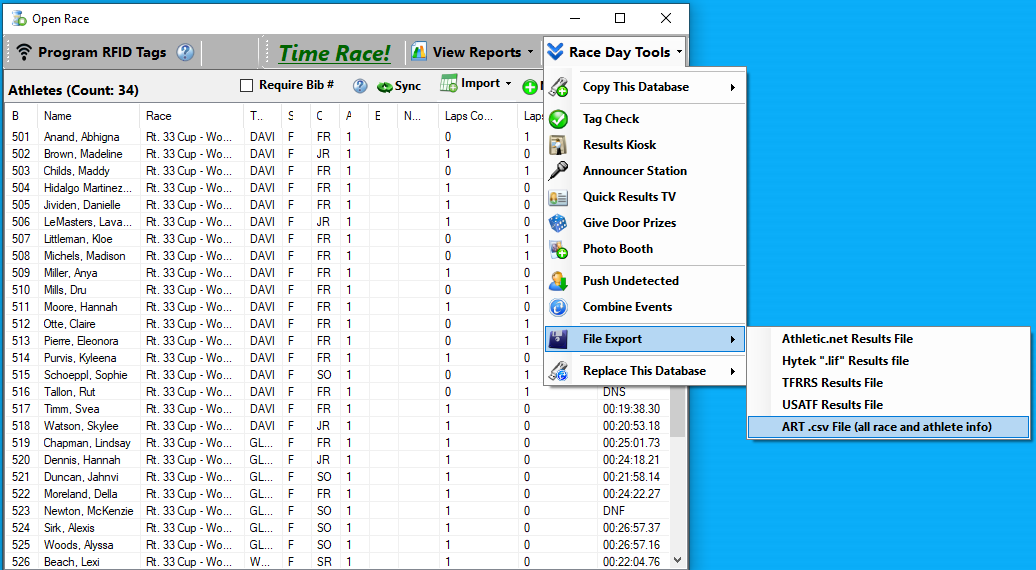
- Choose a folder.
- Click the Green + button to create a new output.
- Select the following fields.
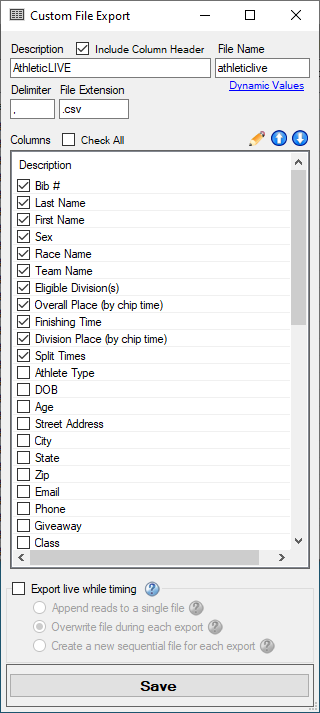
- Keep "Export live while timing" unchecked.
- Click "Save".
- Click "OK".
- You should see results for this race on AthleticLIVE within a minute.