Set Up FinishLynx with AthleticLIVE for Cross Country
This guide will walk you through connecting FinishLynx to AthleticLIVE for Cross Country, including live results, splits, and running time.
Most meets, we recommend using AthleticLOCAL with a FinishLynx LIF Scoreboard. Make sure that this is selected as your FAT System when creating the meet. This provides the most complete live results experience.
BEFORE YOU BEGIN
You will need:
- FinishLynx Version 13.10+
- AthleticLOCAL - Download Page
- An AthleticLIVE meet with Upload Protocols enabled
- Your database or events uploaded to AthleticLIVE meet page from your MM System
If you are recording splits or using multiple timing computers, install AthleticLOCAL on each computer that will send split or finish data.
RECOMMENDED SETUP: AthleticLOCAL
AthleticLOCAL is the recommended way to connect FinishLynx to AthleticLIVE. It handles the connection information for you, so you don't need to manually configure AthleticLIVE web IP addresses and ports.
1. Overview
Setup | Use it when… |
Most XC meets, especially if using splits or multiple timing computers. Utilizes .LIF files created by FinishLynx. Advanced Users can implement splits and other functionalities. | |
Basic finish-line-only setup. up to 250 athletes per race, no splits, information straight from FinishLynx Scoreboards scripts. | |
You want the live race clock displayed on AthleticLIVE |
2. XC Results Setup
A. Set Up LIF Results
A LIF (Lynx Information File) is a results file created by FinishLynx for each race.
AthleticLOCAL monitors these files and sends the results to AthleticLIVE as they are updated. This allows AthleticLIVE to display:
- Live finish results
- Allows split points and Live split results
- Live team scoring
- Place changes throughout the race
- Results from multiple FinishLynx computers
Configuring the LIF Scoreboard
1. Set FinishLynx to automatically save LIFs
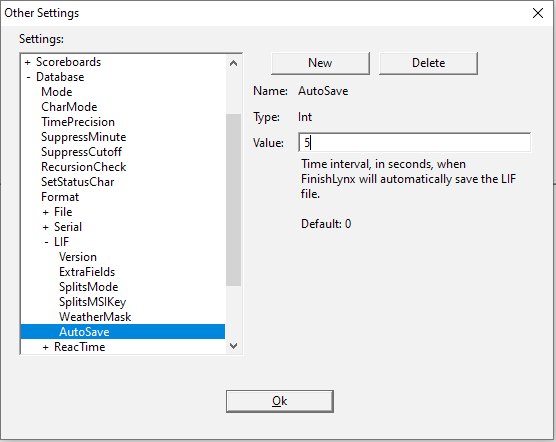
In order for XC LIF scoreboards to work, you must configure FinishLynx to automatically save the LIFs from an event every few seconds. This is in FinishLynx's hidden settings.
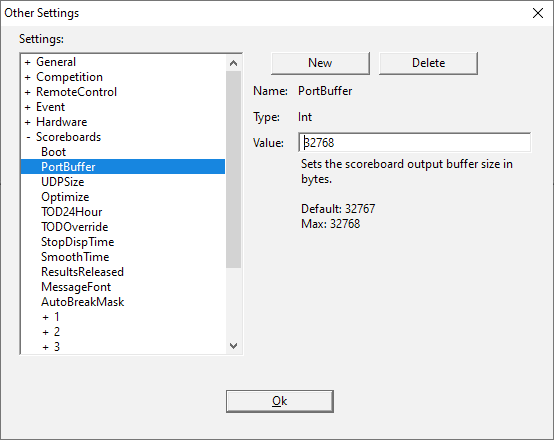
To open the hidden settings, select File Options from the menu bar while holding down the SHIFT and CTRL keys.
Navigate to Database LIF AutoSave. Change the value to 5, click OK, then restart FinishLynx. NOTE: Sometimes, Lynx will not autosave until you manually save an event once with Ctrl+S. So it's a good idea to hit Ctrl+S when you open an event.
2. Upload events from your meet management system
In order to effectively use the LIF scoreboard, you'll need to upload the events for your meet to AthleticLIVE, and if necessary, set split names for each split point you will have. Visit the AthleticLIVE Support Hub and select your meet management software title learn how to upload events from your software. Once you've finished uploading events, set the split names for each race by following the instructions in Set Split Names.
3. Configure your LIF machines in AthleticLIVE
When you open your meet's detail page in the AthleticLIVE meet administration portal, you'll find a warning that your meet has no LIF machines configured. Select LIF Machines under Administer the Meet to start configuring your LIF machines.
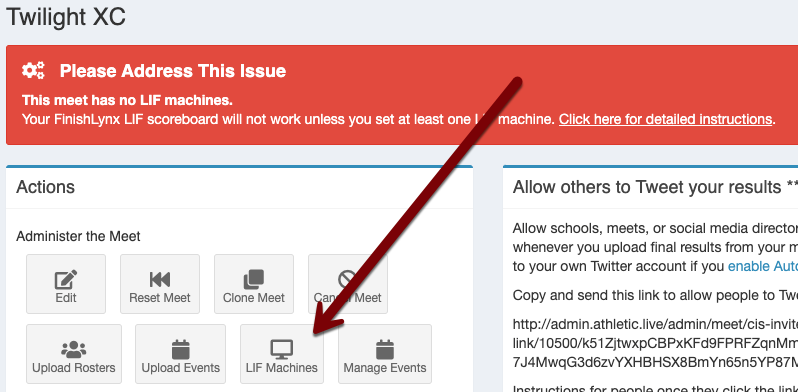
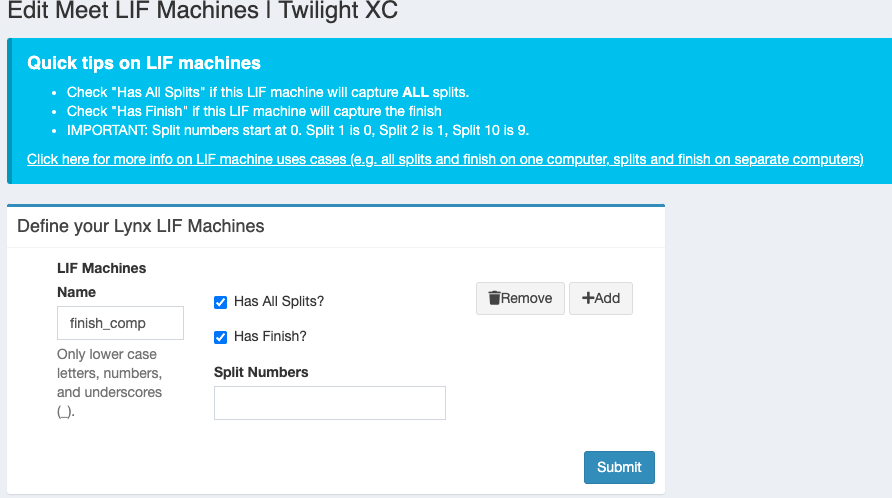
On the subsequent screen, you'll be asked to enter details about each computer that will be uploading race data to AthleticLIVE. LIF scoreboards can be configured so that one computer sends all split and finish data to AthleticLIVE...
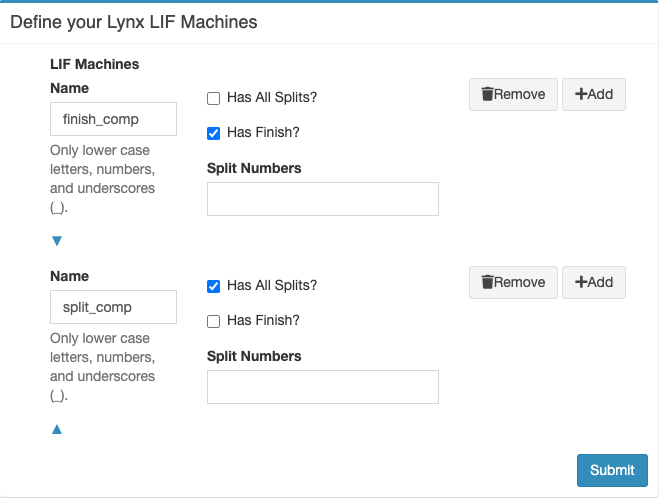
...or so that one computer sends all split data and another computer sends all finisher data to AthleticLIVE...
...or so that the split points are divided up between multiple computers and the finish is another computer entirely:
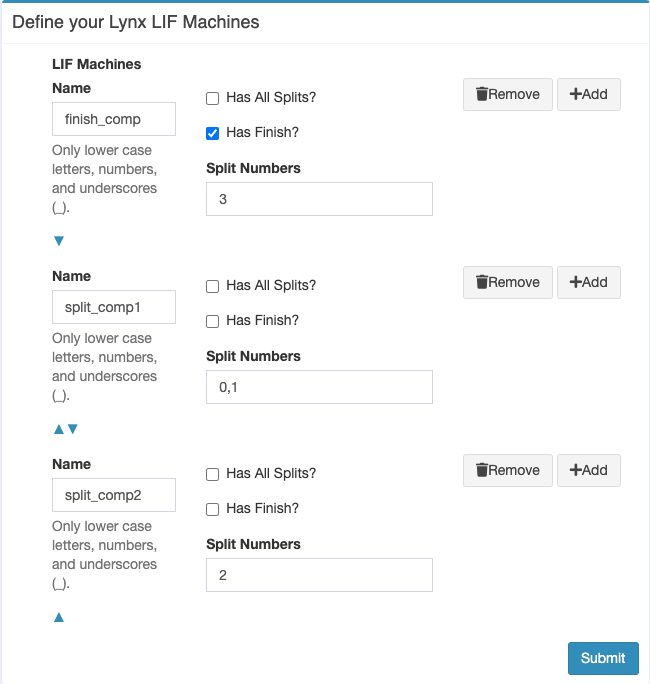
For more information on LIF Machines and their use cases, see Advanced Section below or click here.
4. Configure your LIF machines in AthleticLOCAL
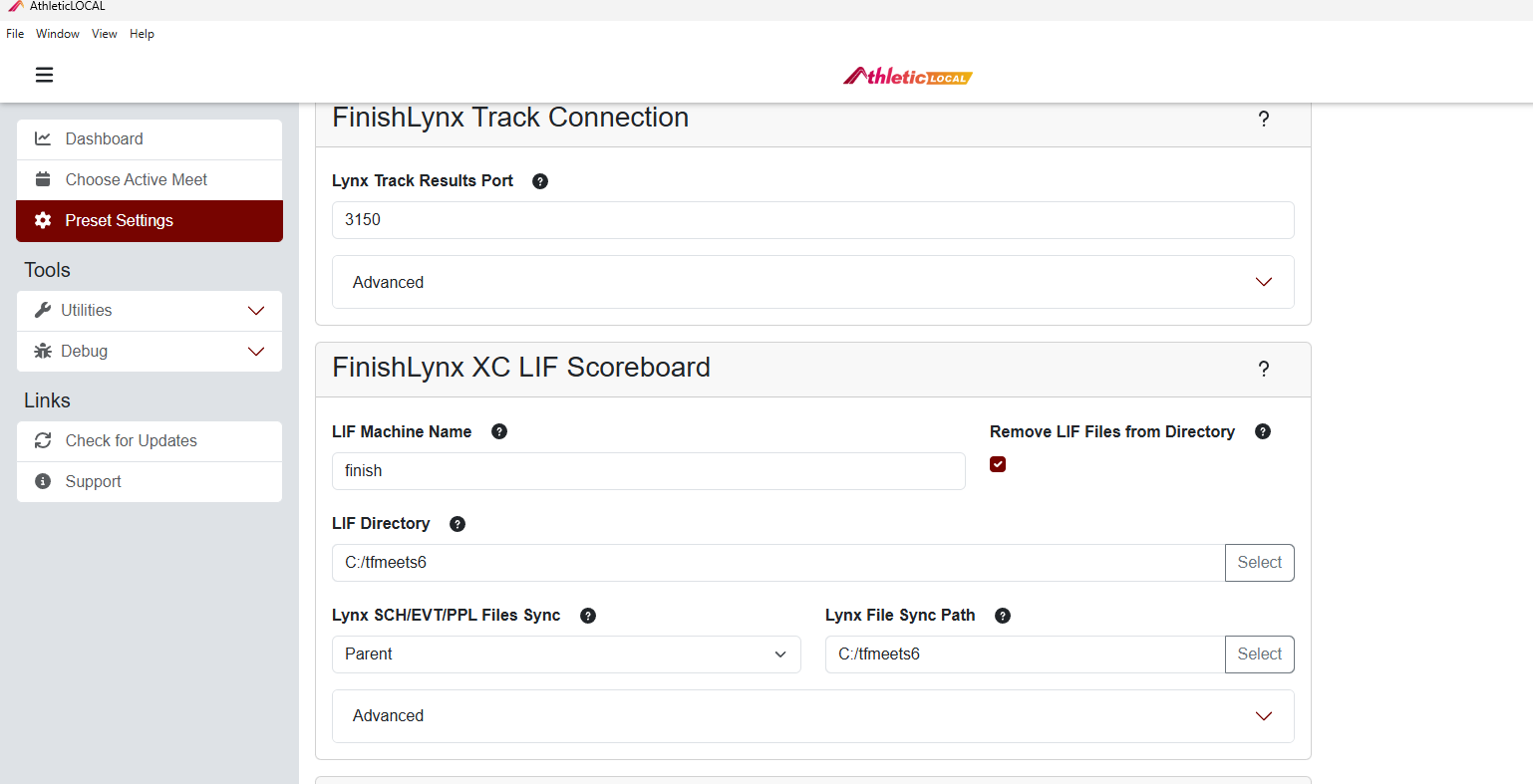
Match your LIF Machines names and FinishLynx Output Directory.
B. Simple XC Scoreboard — (Similar to TF)
For a basic finish-only meet, FinishLynx can send results using a standard scoreboard connection. This information still sends through AthleticLOCAL. (250 Athlete max per race)
1. Download the Script
Simple Scoreboard Communication between FinishLynx and AthleticLIVE requires the alive-results.lss scoreboard script, which is available for download on the AthleticLIVE Downloads page. Copy the file to C:\Lynx.
C:\Lynx, you'll need to restart FinishLynx before you'll be able to access the script file.2. FinishLynx Hidden Settings
You'll need to configure a few of FinishLynx's hidden settings in order to ensure trouble-free communication between FinishLynx and AthleticLIVE. To open the hidden settings, select File Options from the menu bar while holding down the SHIFT and CTRL keys.
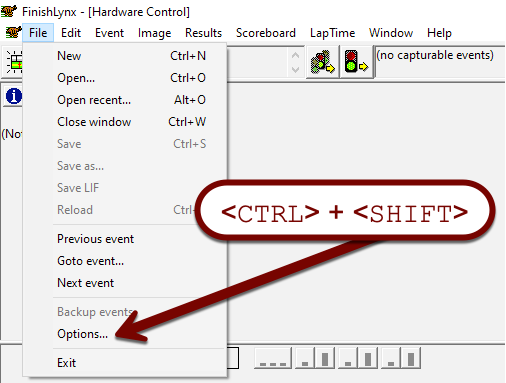
Click on the + next to Scoreboards, and select PortBuffer. Change the value to 32768. This will prevent scoreboard freezing when lots of data comes in at once.
Next, navigate to Event Results Delta Defaults. Ensure the From value is set to 0.
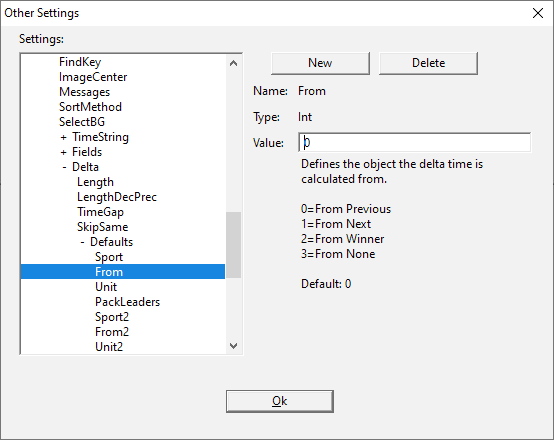
Once you've made these changes, click OK and restart FinishLynx.
3. Configure the Scoreboard
Select Scoreboard Options from the menu bar.
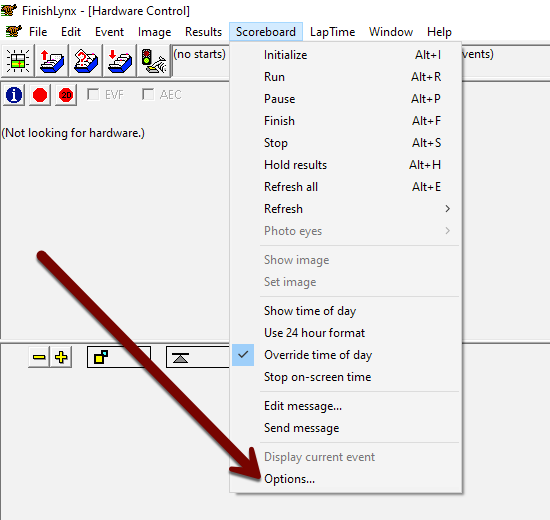
Click New and set the Name field to ALIVE XC Results. Set Serial Port to Network (Connect), then configure the Script, Port, and IP Address fields as indicated on your Meet Details page.
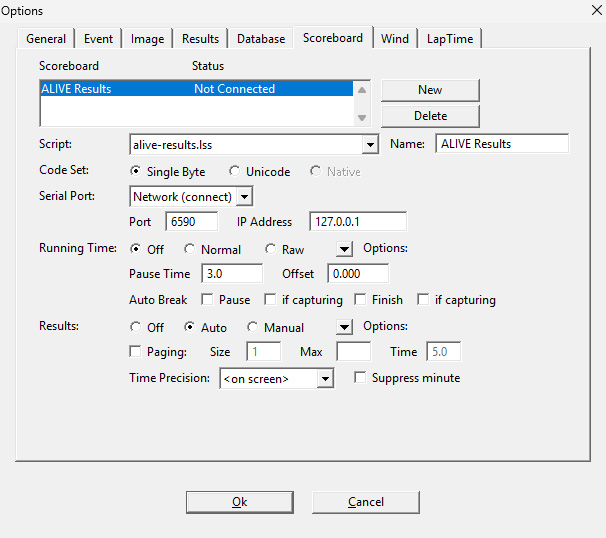
- Status: Will say Running if you have a meet selected in AthleticLOCAL.
- Name: ALIVE Results
- Script: alive-results.lss
- Code Set: Single Byte
- Serial Port: Network (Connect)
- Port: Listed in AthleticLOCAL
- IP Address: IP of computer running AthleticLOCAL.
- Running Time: Off (and ignore further Running Time settings)
- Results: Auto
- Options
- Always Send Place: Checked
- Include First Name: Checked
- Paging: Unchecked (and ignore Size, Max, and Time
- Time Precision: Tenths
Once you've configured the scoreboard, click OK and restart FinishLynx. Return to the Scoreboard Options screen and ensure that the status “Running” is displayed next to your new scoreboard configuration.
3. Set up your Running Clock Script
1. Download the Script
Communication between FinishLynx and AthleticLIVE requires the tmioRuntime.lss scoreboard script, which is available for download on the AthleticLIVE Downloads page. Copy the file to C:\Lynx.
C:\Lynx, you'll need to restart FinishLynx before you'll be able to access the script file.2. Configure the Scoreboard
Select Scoreboard Options from the menu bar.
Click New and set the Name field to ALive Running Clock. Set Serial Port to Network (UDP), then configure the Script, Port, and IP Address fields as indicated on your Meet Details page.
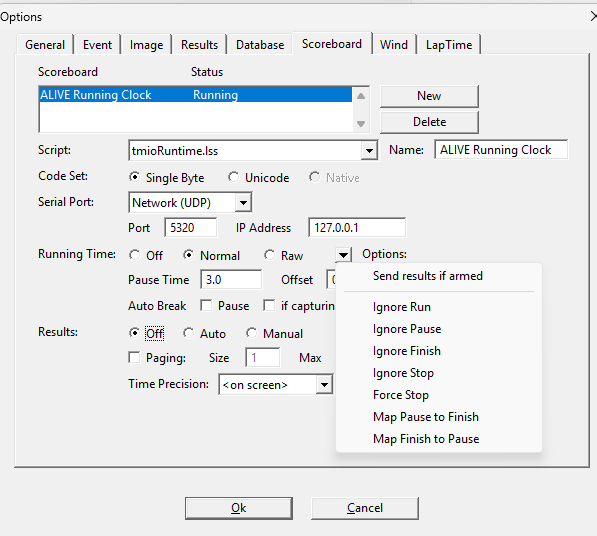
STATUS: Will ALWAYS SAY RUNNING because set to Network(UDP), so do not use this as an indicator for connection.
- Name: ALIVE Running Clock
- Script: tmioRuntime.lss
- Code Set: Single Byte
- Serial Port: Network (UDP)
- Port: Listed in AthleticLOCAL, (Default 5320)
- IP Address: IP of computer running AthleticLOCAL.
- Running Time: Normal
- Options
- Send results if armed: Unchecked
- Results: Off
Once you've configured the scoreboard, click OK and restart FinishLynx. Return to the Scoreboard Options screen and ensure that the status “Running” is displayed next to your new scoreboard configuration.
ADVANCED SECTION:
Splits Setup
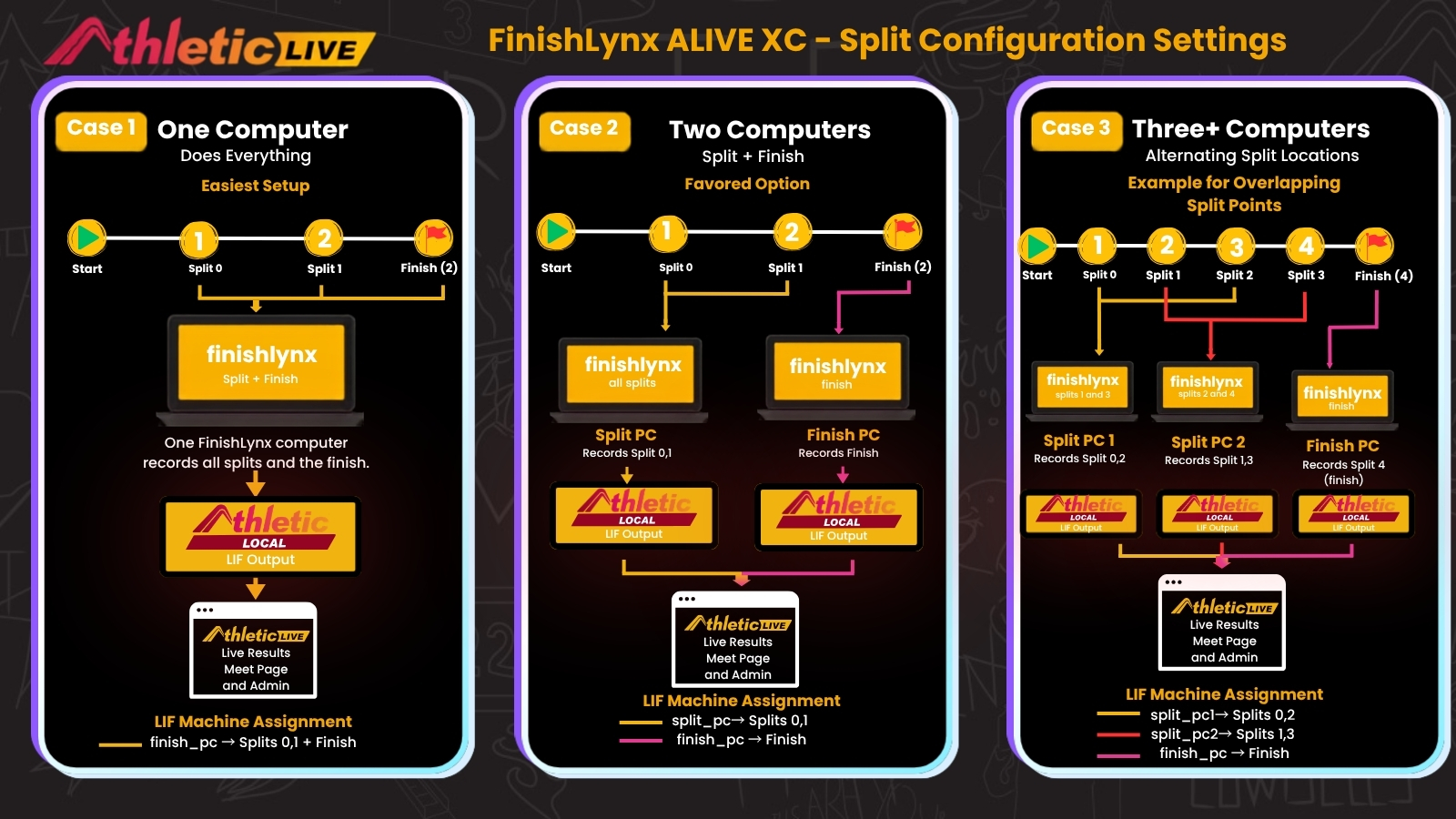
Use Case 1: Splits and Finish on the Same Computer
On the LIF Machines screen in the AthleticLIVE Meet Administration Portal, configure LIF Machines as shown here:
The Name field allows you to name the computer. Make it easy on yourself, because you'll need to enter the machine name identically into AthleticLOCAL. Click Submit.
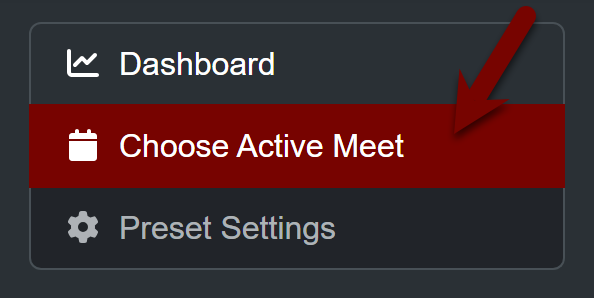
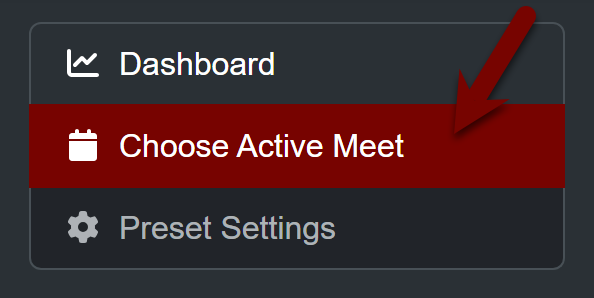
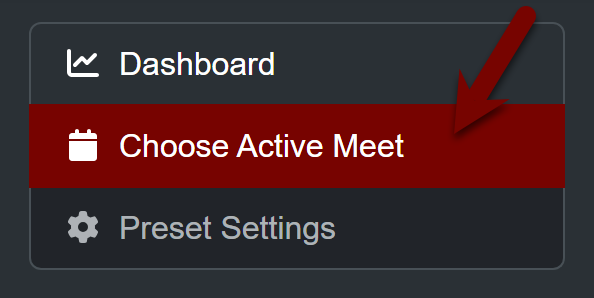
After starting AthleticLOCAL, select Choose Active Meet in the sidebar, and then select the meet you're configuring from the dropdown list on the subsequent page.
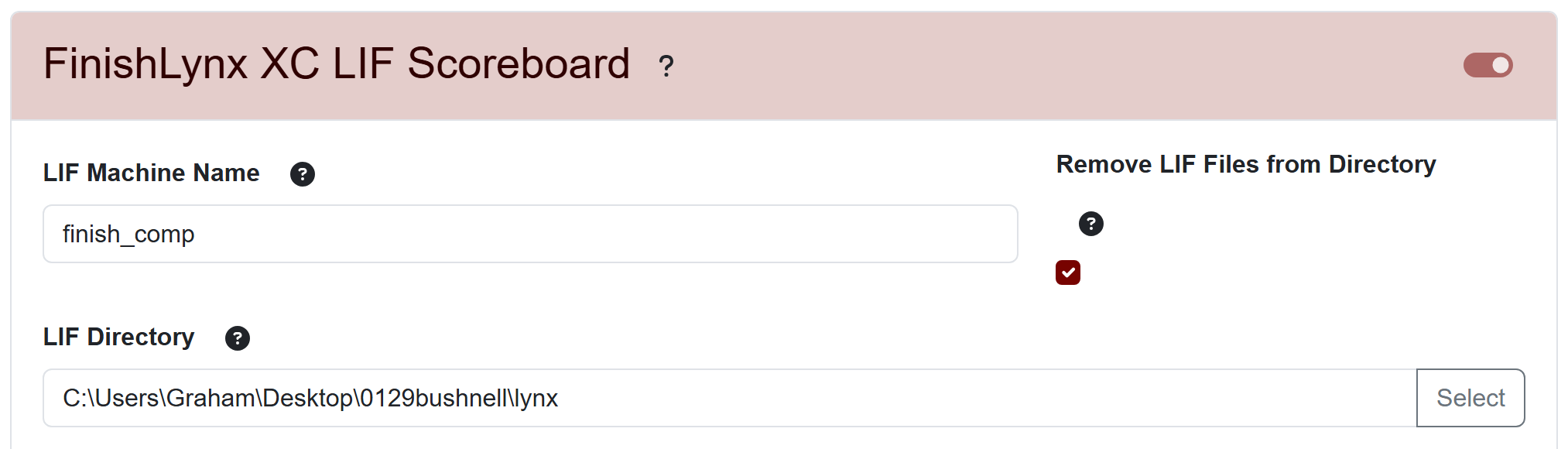
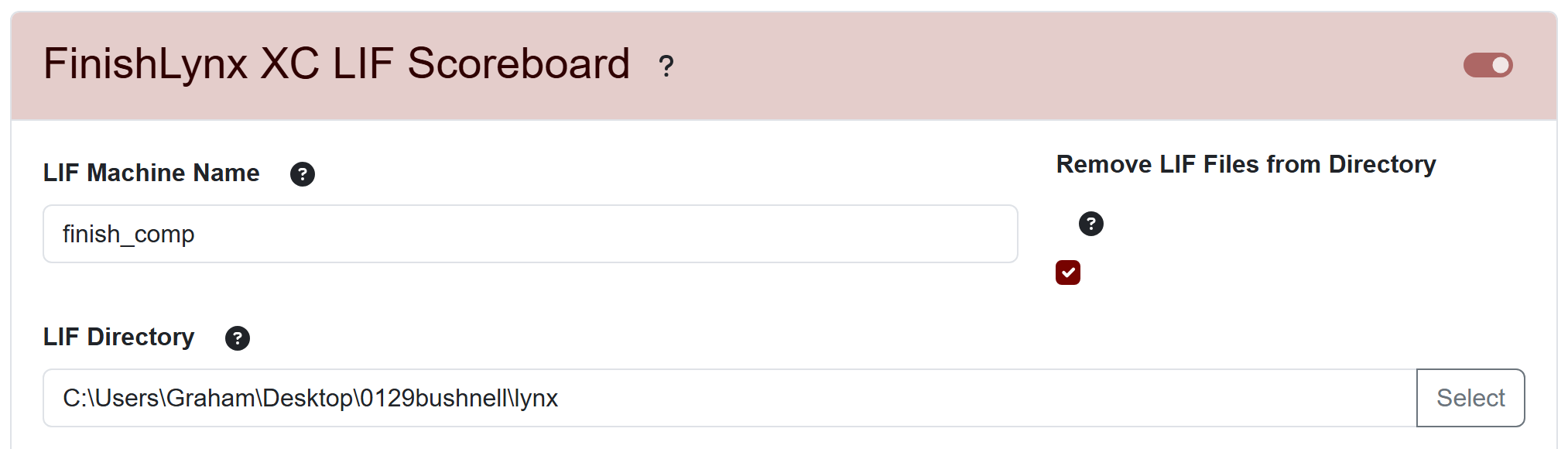
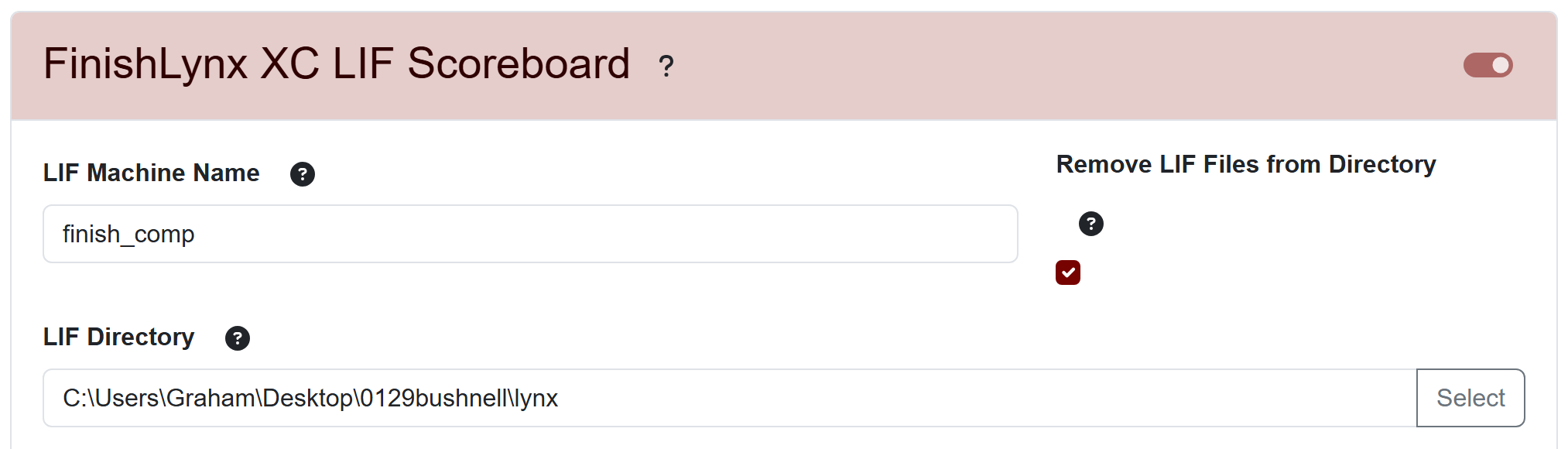
After you select your meet, locate the "FinishLynx XC LIF Scoreboard" header. Enter the LIF Machine Name exactly as you entered it into the AthleticLIVE Meet Administration Portal. In the LIF Directory field, select the directory where FinishLynx is saving the LIFs.
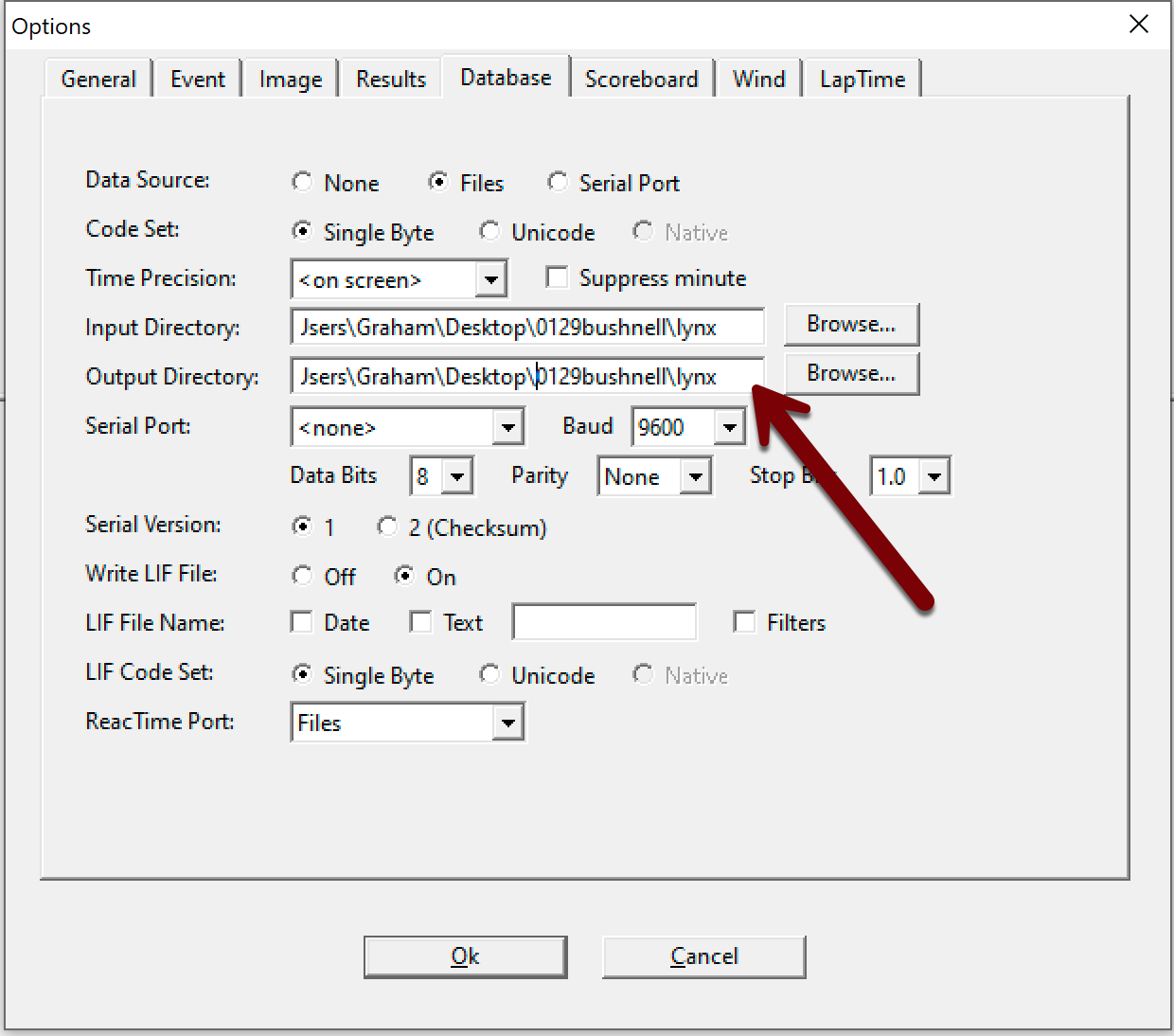
When it's time to get your race going, open the event in FinishLynx as usual. Ensure that your Total Laps field in FinishLynx is set to the correct number of split points, plus the finish. For example, if you have a 1-mile and a 2-mile split in a 5K, set the Total Laps field to 3.

Use Case 2: Splits and Finish on Separate Computers
On the LIF Machines screen in the AthleticLIVE Meet Administration Portal, configure LIF Machines as shown here:
The Name field allows you to name the computers. Make it easy on yourself, because you'll need to enter the machine names identically into AthleticLOCAL. Click Submit.
After starting AthleticLOCAL, select Choose Active Meet in the sidebar, and then select the meet you're configuring from the dropdown list on the subsequent page.
After you select your meet, locate the "FinishLynx XC LIF Scoreboard" header. Enter the LIF Machine Name exactly as you entered it into the AthleticLIVE Meet Administration Portal. In the LIF Directory field, select the directory where FinishLynx is saving the LIFs.
The split computer should have the exact same version of the start list files that the finish computer has. Normally, the start list files consist of lynx.sch, lynx.ppl, and lynx.evt. Once your meet management software produces these files, they should be copied to each computer that will collect split data for the race. Each copy of FinishLynx must have an event with the same start lists and event numbers so that AthleticLIVE knows that the information being transmitted is for the same race.
Open the event in FinishLynx on your split computer, and set the Total Laps field to contain at least the same number of laps as split points you have. Good practice is to add at least one extra lap—it isn't a problem if you have too many laps on a split computer, but it will be a problem if you don't have enough!
Set default laps value
Open the hidden settings in FinishLynx by selecting File Options from the menu bar while holding down theSHIFT and CTRL keys. Navigate to LapTime TotalLaps. Change the value from 0 to a number high enough that you will never run out of slots for split points while timing.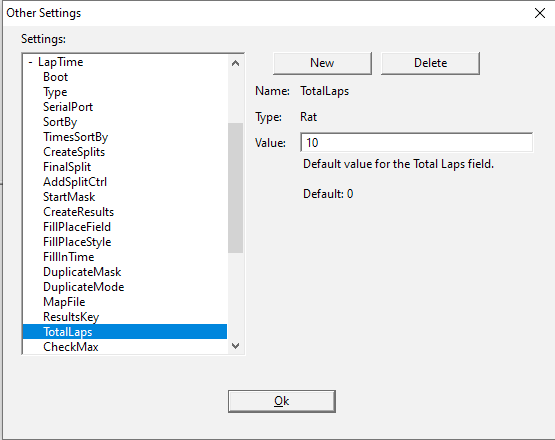
Simply open the event in FinishLynx (ensuring that it is the identical event that is open on the split computer), and make sure your Total Laps field is set to 1.

Use Case 3: Multiple Computers for Splits and/or Finish
On the LIF Machines screen in the AthleticLIVE Meet Administration Portal, configure LIF Machines. The following example shows one way that the LIF Machines could be configured.
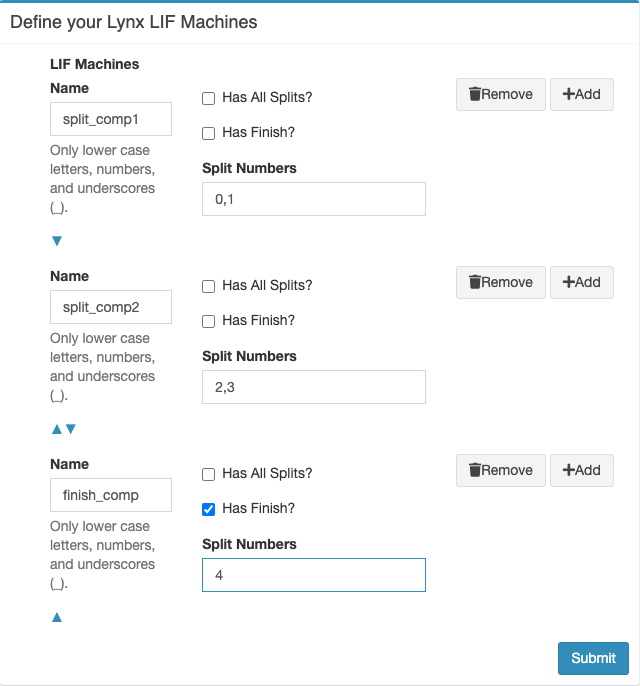
This example is taken from an 8K race where there were splits every mile. One computer collected the 1-mile and 2-mile splits, a second computer recorded the 3-mile and 4-mile splits, and a third computer recorded the finish. The splits are simply listed in numerical order, separated by a comma.
0. In other words, the first split number should be split number 0.Since we also want to show the finish split in the split grid, the finish must be assigned the final split number (in this case,
4, since there are 5 split points beginning with 0.The Name field allows you to name the computers. Make it easy on yourself, because you'll need to enter the machine names identically into AthleticLOCAL. Click Submit.
After starting AthleticLOCAL, select Choose Active Meet in the sidebar, and then select the meet you're configuring from the dropdown list on the subsequent page.
After you select your meet, locate the "FinishLynx XC LIF Scoreboard" header. Enter the LIF Machine Name exactly as you entered it into the AthleticLIVE Meet Administration Portal. In the LIF Directory field, select the directory where FinishLynx is saving the LIFs.
The split computer should have the exact same version of the start list files that the finish computer has. Normally, the start list files consist of lynx.sch, lynx.ppl, and lynx.evt. Once your meet management software produces these files, they should be copied to each computer that will collect split data for the race. Each copy of FinishLynx must have an event with the same start lists and event numbers so that AthleticLIVE knows that the information being transmitted is for the same race.
Open the event in FinishLynx on your split computer, and set the Total Laps field to contain at least the same number of laps as split points you have. Good practice is to add at least one extra lap—it isn't a problem if you have too many laps on a split computer, but it will be a problem if you don't have enough!
Set default laps value
Open the hidden settings in FinishLynx by selecting File Options from the menu bar while holding down theSHIFT and CTRL keys. Navigate to LapTime TotalLaps. Change the value from 0 to a number high enough that you will never run out of slots for split points while timing.Simply open the event in FinishLynx (ensuring that it is the identical event that is open on the split computer), and make sure your Total Laps field is set to 1.
Sync your EVT, SCH, and PPL files between multiple computers
When doing Use Case #2 or #3, you may need to update your split machines lynx.evt, lynx.sch, and lynx.ppl files. AthleticLOCAL makes this easy.
Definitions:
- The "Parent" machine is the one with your meet management system that generates the lynx.evt, lynx.sch, and lynx.ppl files
- "Child" machines get the lynx.evt, lynx.sch, and lynx.ppl files from the parent machine.
For each computer, do the following:
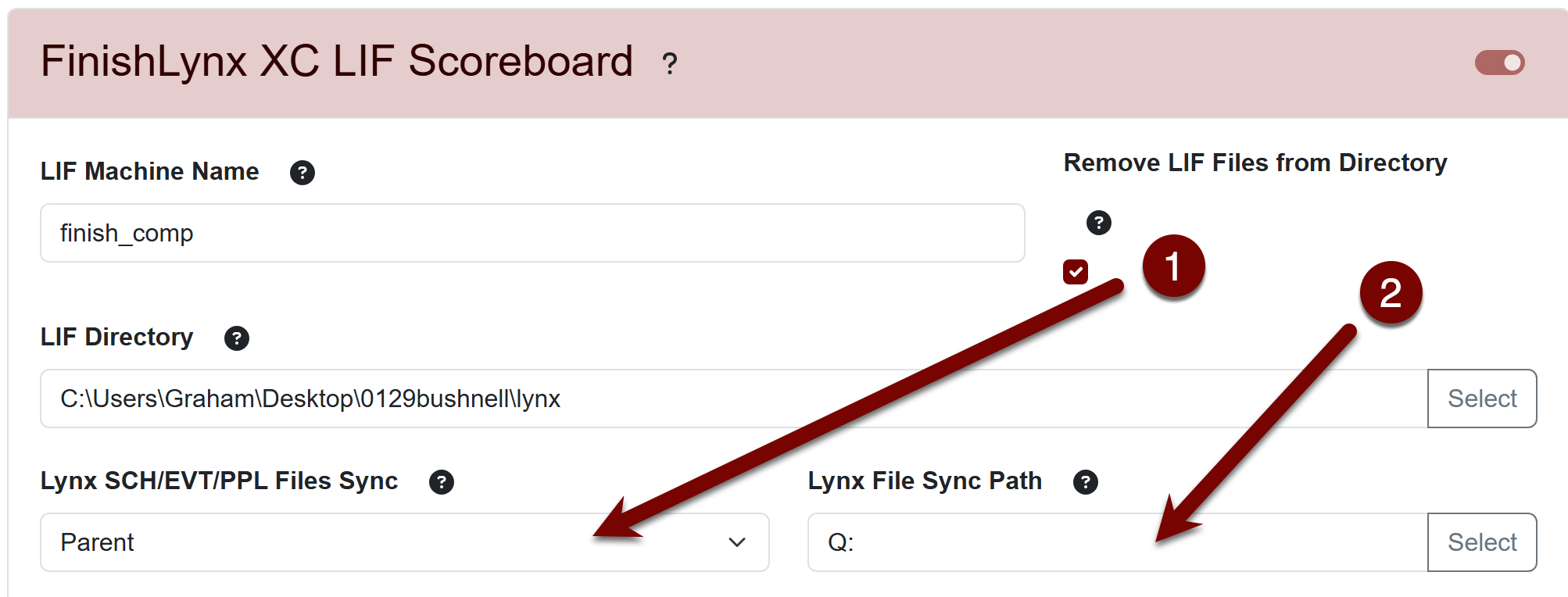
- On the Choose Active Meet page, locate the FinishLynx XC LIF Scoreboard section.
- For the parent machine that has the master lynx.evt, lynx.sch, and lynx.ppl files:
- Set "Lynx SCH/EVT/PPL Files Sync" to "Parent"
- Set "Lynx File Sync Path" to the directory where the lynx.evt, lynx.sch, and lynx.ppl are saved.
- For the child machine that needs to receive the lynx.evt, lynx.sch, and lynx.ppl files:
- Set "Lynx SCH/EVT/PPL Files Sync" to "Child"
- Set "Lynx File Sync Path" to the directory where the lynx.evt, lynx.sch, and lynx.ppl should be saved.
- Click "Submit".
Divide LIF Files with AthleticLOCAL for Easy Mixed Gender/Division/Teams Racings for your MM System
AthleticLOCAL includes utilities for splitting a single FinishLynx LIF file into multiple LIF files. This is useful when athletes are timed together in FinishLynx but need to be imported into separate events in your meet management software.
In AthleticLOCAL, open Utilities and choose one of the following options:
Divide LIF by Team
Use Split LIF by Team when multiple teams or groups were timed together but need separate event results.
- Select the LIF file.
- Click Get Team List.
- Enter the desired event number next to each team.
- Click Divide LIF.
AthleticLOCAL creates new LIF files for teams selected with updated event numbers and athlete places.
Divide LIF by Gender
Use Split LIF by Gender when male and female athletes were timed together but need separate events.
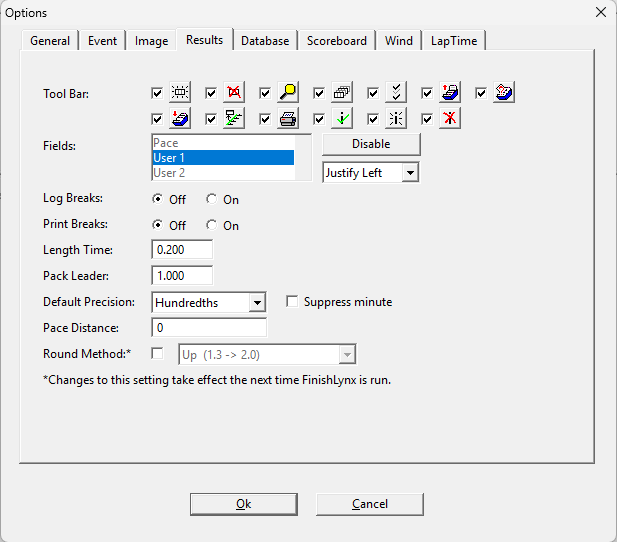
The original LIF must contain M or F in the FinishLynx User 1 field. (Can be set in FL Results options, see image below)
Many popular softwares like RunMeet, HyTek, and MeetPro already include gender as User 1
- Select the LIF file.
- Enter the Female Event Number and Male Event Number.
- Click Divide LIF.
AthleticLOCAL creates separate male and female LIF files with updated event numbers and athlete places.
Divide LIF by Place
Use Split LIF by Place when varsity and junior varsity athletes were timed together and need to be separated based on finishing order.
- Select the LIF file.
- Enter the number of athletes that make up a varsity team.
- Enter the desired Varsity Event Number and Junior Varsity Event Number.
- Click Divide LIF.
AthleticLOCAL separates the results and creates new LIF files with updated event numbers and athlete places.
Where are the new files?
All split LIF files are created in the same directory as the original LIF file. Import the newly created files into your meet management software just as you would any other FinishLynx LIF.
Export Scoreboard LIF
If you want your Lynx split data included in your meet management system, you can use Export Scoreboard LIF.
AthleticLIVE combines the splits received from your cloud Lynx/scoreboard data with the finish results and creates a LIF file for you to download. This eliminates the need to manually merge your local LIF files with split data.
You can find these on your Manage Events page on admin.athletic.live
Once downloaded, import the ALive LIF file into your meet management software as you normally would instead of the one created by FinishLynx.
Tip: Use Export Scoreboard LIF when you want splits to become part of the results in your meet management system, rather than only displaying them with results on AthleticLIVE. For printed reports, official uploads, and for posterity.
Connect Without AthleticLOCAL
Connecting directly to AthleticLIVE
AthleticLOCAL is recommended for most users. If AthleticLOCAL isn't available or your network configuration requires a direct connection, FinishLynx can connect using the web IP address and port shown in AthleticLIVE. This option is available only for Simple FinishLynx XC Scoreboard.
These values can vary by meet, and can be found on the AthleticLIVE admin page for that meet.
Running Time Status will ALWAYS say running, because Network (UDP) 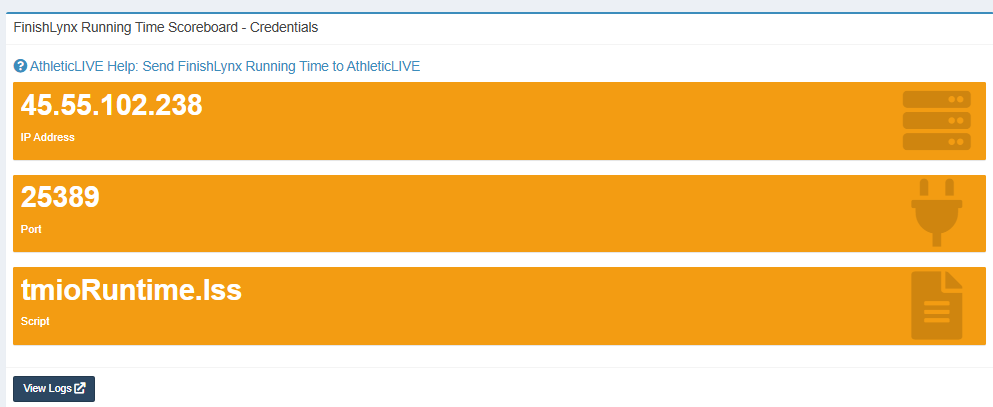 | 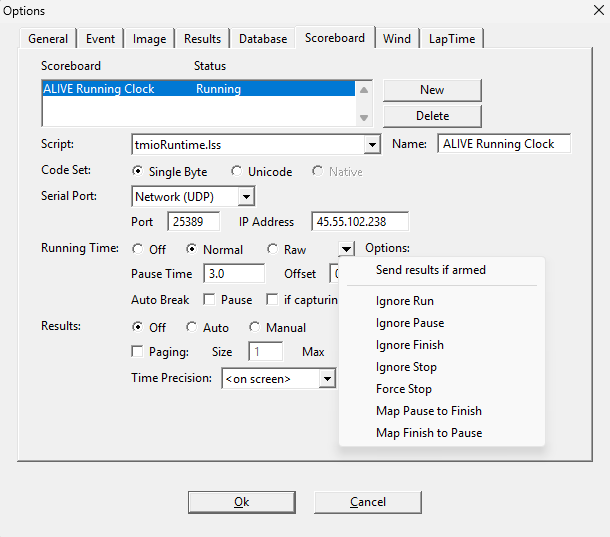 |
Results Status will indicate whether it has found the meet or not. If not found, try internet connection or through AthleticLOCAL. 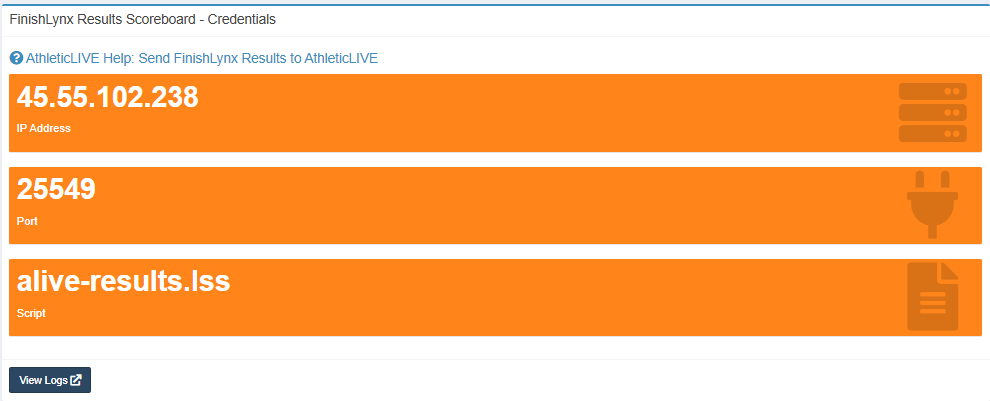 | 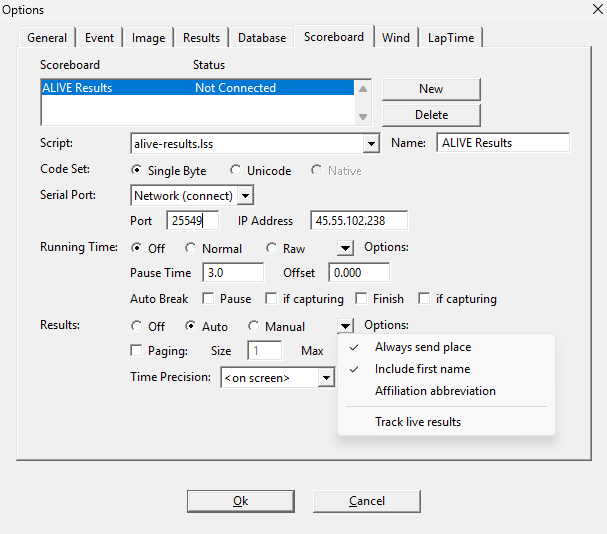 |
Summary of Workflow
FinishLynx Method A → Enable LIF AutoSave → Set AutoSave interval → Set/save LIF location → Configure Running Clock
FinishLynx Method B → Download Script → Create FinishLynx Scoreboard Script → Match Settings and Ports → Configure Running Clock
AthleticLIVE ADMIN→ Upload Events → Configure split points if needed → Set LIF Machine names
AthleticLOCAL → Select Active Meet → Enter matching LIF Machine name → Select the LIF folder → Verify files are being created/detected/uploaded/synced
