Install and Operate AthleticLOCAL
Introduction
AthleticLOCAL is AthleticNET's second-generation middleware software. Prior to December 2025, AthleticNET had two separate middleware apps:
- AthleticLIVE Local for AthleticLIVE
- RunMeet Local for RunMeet
AthleticLOCAL combines the features of both into a single app. As of November 30, 2025, AthleticLIVE Local and RunMeet Local will no longer receive updates. We highly recommend downloading AthleticLOCAL before your season kicks into full gear!
AthleticLOCAL contains almost all features from the two prior apps. Simply select your meet, configure any available options, and begin. See the "Removed Features" header at the end of this article for a list of features that have either been deleted or moved to other apps.
Install
- Visit our downloads page to download the AthleticLOCAL installer file. AthleticLOCAL is compatible with Windows computers running Windows 10 or newer.
- Open the AthleticLOCAL-Setup.exe file
- Proceed with the installation process.
- Once the installation is complete, icons for AthleticLOCAL should appear on your desktop and in your Start menu.
Usage
Start the app
Start AthleticLOCAL with the icon on your desktop or in your Start menu. Once it opens, login with your AthleticNET credentials.
Updates
We regularly release updates to AthleticLOCAL to fix bugs and introduce new features. After login, you may see a red bar at the top of the screen indicating that a new version is available.

Click Download to download the new installer in the background. When it's downloaded, you'll see a "Install Update" button in the same banner. Click "Install Update" to complete the update process.
Choose Active Meet
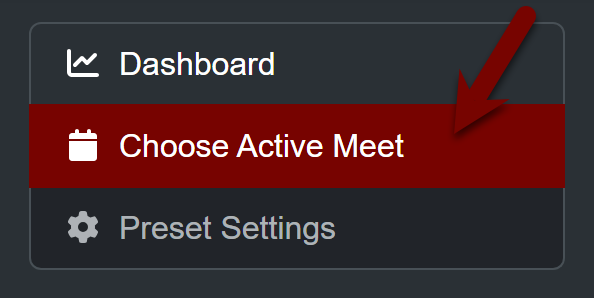
The first thing you must do upon starting AthleticLOCAL is to tell it what meet you're sending data to. Select Choose Active Meet in the sidebar and choose your meet from the list.
Protocol Statuses
The Protocol Statuses section of the AthleticLOCAL home screen indicates all upload protocols currently in use by your meet. Which protocols are in use will depend upon how your meet was configured when you created the meet listing. For more information, see Create a Meet.
Configuring Software to Work with AthleticLOCAL
The following features and upload protocols work with AthleticLOCAL. Each heading links to instructions for configuring that feature. While for most features the use of AthleticLOCAL is optional, some features require the use of AthleticLOCAL in order to work. These are noted with (required).
RunMeet
Hytek
- HyTek Database Connection (required)
Meetpro
- Result & Entry Uploads with Publish to Disk (required)
FinishLynx
- Configure a Live Track Scoreboard with FinishLynx
- Configure a Simple Cross Country Scoreboard with FinishLynx
- Setup a Live XC Scoreboard with FinishLynx LIFs (required)
- Automated Image Exports with FinishLynx (required)
FieldLynx
RaceResult
- Uploading from Race Result to AthleticLIVE (required)
Race Day Scoring
Agee Race Timing
Preset Settings
Each upload protocol has a default configuration, such as usernames, passwords, ports, or directories. You can modify these by clicking "Preset Settings" in the side menu.
Shutdown the app
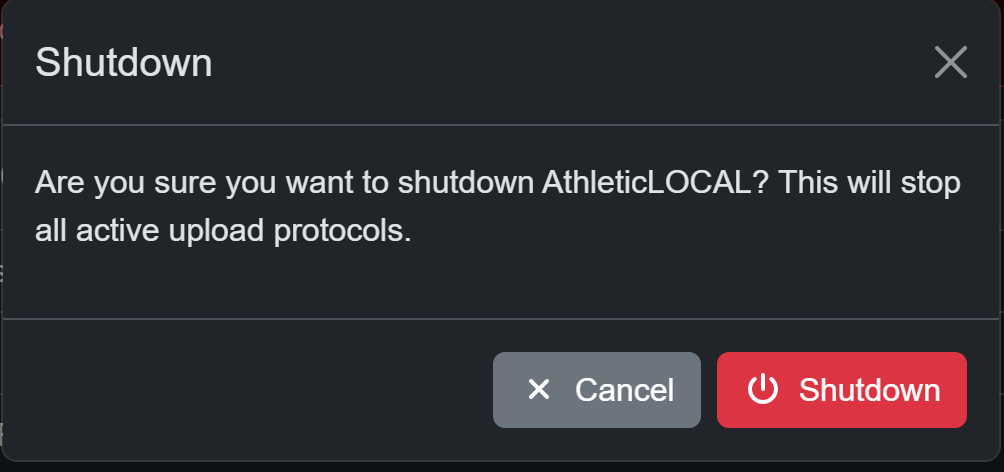
To shutdown the app, click the "X" in the taskbar, then click Shutdown
Debugging
If you run into a problem, do 2 things:
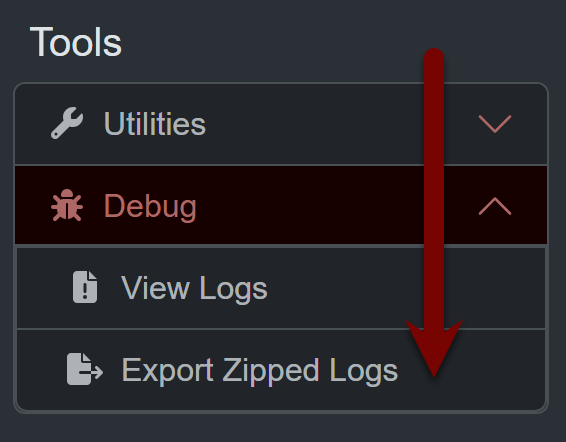
- Download recent logs by clicking Debug Export Zipped Logs in the left menu
- Email the zipped logs to live@athletic.net and describe the problem with screenshots or links.
Removed Features
There are a few rarely used features that have either been moved to other apps or are no longer offered.
- Field App and Track Online Scoreboards will be moved to ASB as Data Output scoreboards
- Field App Local Sync no longer exists. Use Online Sync going forward. If you need to send data to scoreboards, check out ASB Data Outputs.
- Local XC Summary outputs are no longer available. Use ASB XC Summary boards with online data.
- AthleticLOCAL does not support FTP passthrough for HyTek FTP or Meetpro FTP. If you must continue using FTP, please use the credentials on your AthleticLIVE Admin Meet Detail Page. Consider using the HyTek Database Connection, Meetpro Publish to Disk, or RunMeet instead.
- Schedule for Full Race Videos come from event data uploaded to AthleticLIVE. There is no more EVT/SCH/PPL sync. You'll be able to set a password in the admin and events will update in the app when they update on AthleticLIVE.
