11. Timer Training - Additional Features
Additional Features & Devices We Work With
This guide explains the extra tools, devices, and programs that expand our timing and event-management capabilities. These aren’t used at every meet, but you’ll encounter them often enough to need a working knowledge.
Networking & Connectivity
Nanostations and APs
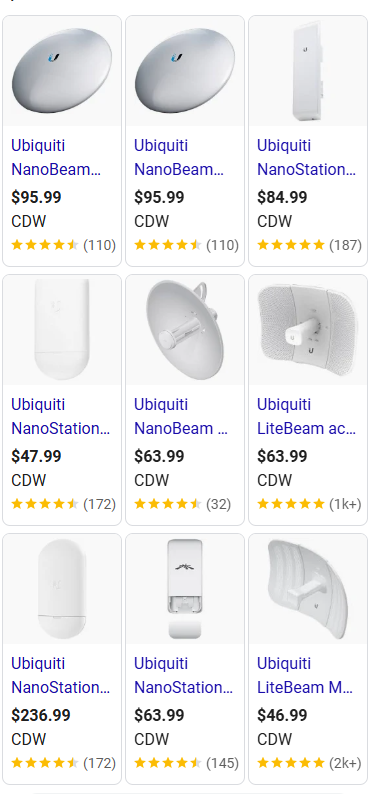
- Purpose: Acts like a wireless-ethernet connection, extending range signicantly, and connect remote devices (cameras, scoreboards, tablets).
- Setup Tips:
- Point Nanostations directly at each other for line-of-sight.
- Use static IPs to avoid conflicts.
- Each Nanostation should have it's own IP address.
- Ping this IP and other IP addresses connected by the network.
- Test signal strength and connection reguarly.
- Files:
Scoring & Display
Allsport 5000
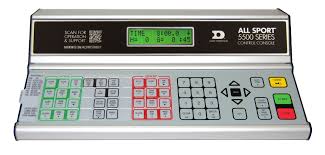
- Physical scoreboard controller for sending results to Daktronics football scoreboards. Usually as a timer you will use it for just running clock.
- Connect via 25 pin serial to usb to push data into live results and overlays.
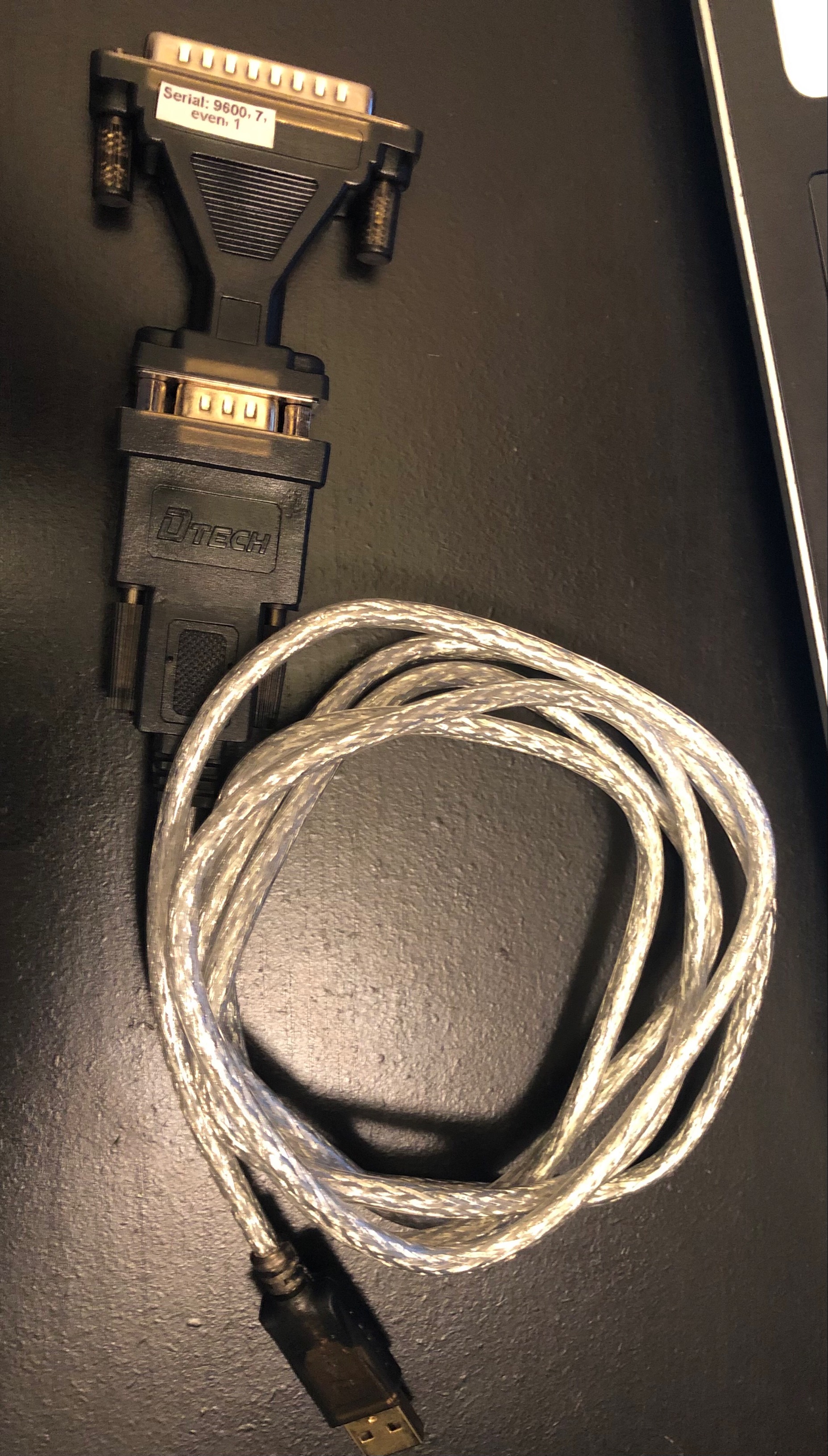
Connecting Dak AllSport 5000 to Show Running Time on Football Scoreboard
- Plug a 25-pin USB-serial adapter into the back of the AllSport 5000.
- Connect the USB end of the adapter into your USB hub → computer.
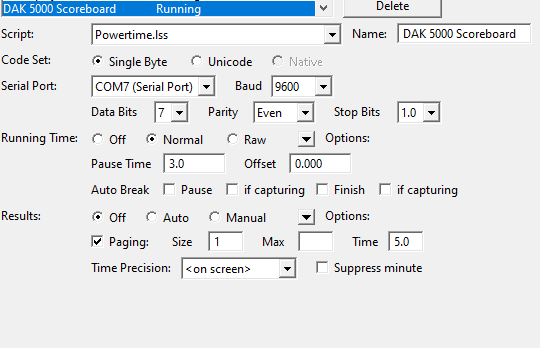
- In FinishLynx, create a Scoreboard Script using Powertime.lss.
- Select an available COM port from the Serial Port dropdown. Match settings below.
- If the COM Port does not show up, restart FinishLynx.
- or you plug in the device after starting FinishLynx, restart FinishLynx.
- Click OK, then restart FinishLynx.
NovaLCT & MCTRL300
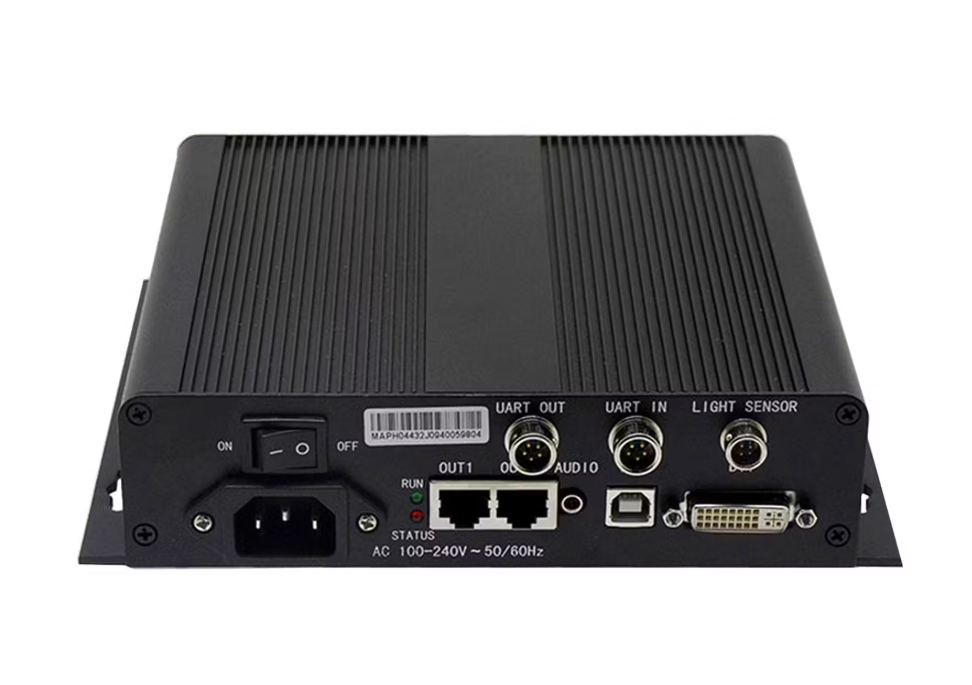
- NovaLCT is the control software used with MCTRL300 processors to manage LED panels.
- Install NovaLCT on your laptop ahead of time.
- Use it to:
- Load LED screen configurations.
- Adjust brightness/ display position.
- Test video signal flow.
- What you will need:
- Power Cable
- DVI to HDMI Cable
- Ethernet
- USB B Cable (like a Printer Cable)
- Helpful Links:
Timing Support Softwares
GPS Dongles with NMEATime2
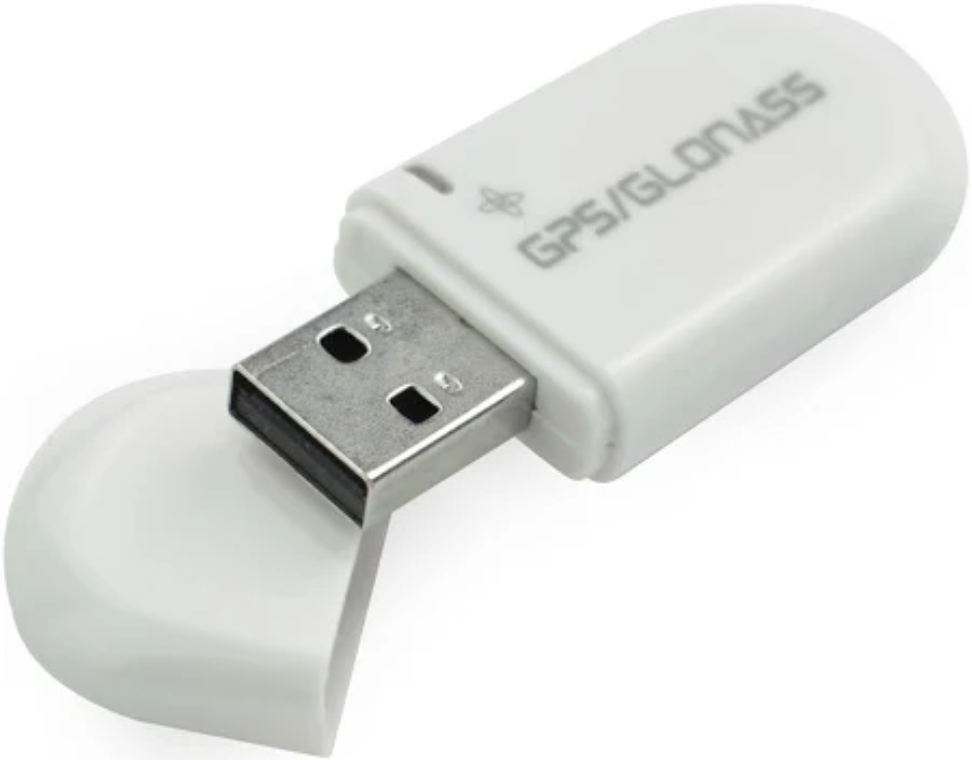
- Ensures accurate time synchronization across computers.
- Install NMEATime2 → set to sync via GPS → verify system clock alignment.
- Settings → GPS Port → Setup Communication → Select the COM Port
- Wait for GPS Connection
- Leave this on while you time your event.
- Download Links:
Bib Chip (RDS Utilities application)
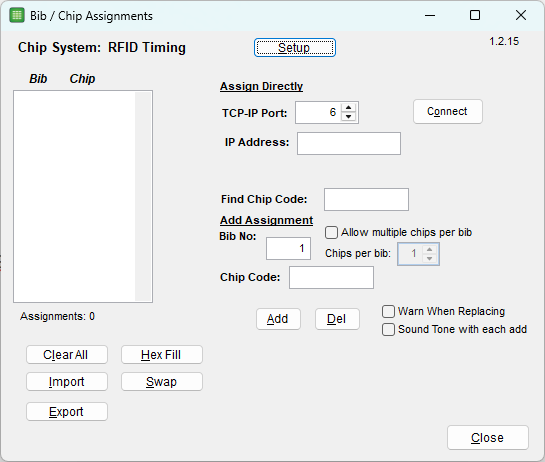
- Used for chip encoding and chip file creation. Works with Trident and Ipico, also has useful features like Double Chip scanning, Importing and Exporting, and swap/replace functions.
- Setup: Start with the Setup Button at the top, select brand, type of chip, and type of connection to scanner.
- Check Windows Device Manager controls for COM #s
- Ping Ports and IPs for network devices.
Genovations “Magic Keyboards” -
- Programmable keypads for quick event shortcuts.
- Common use: one-touch commands for starting/stopping camera, DNSquick data entry.
- Downloads:
Trident Gateway - (Remote Splits)
- Set FinishLynx Laptime settings:
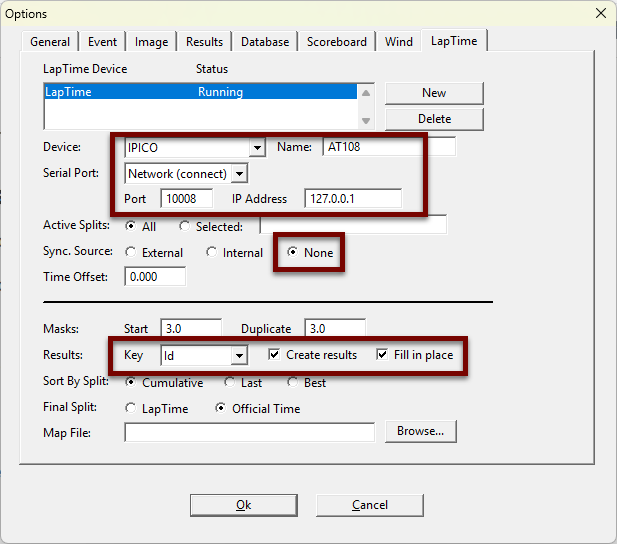
- Set Gateway Settings:
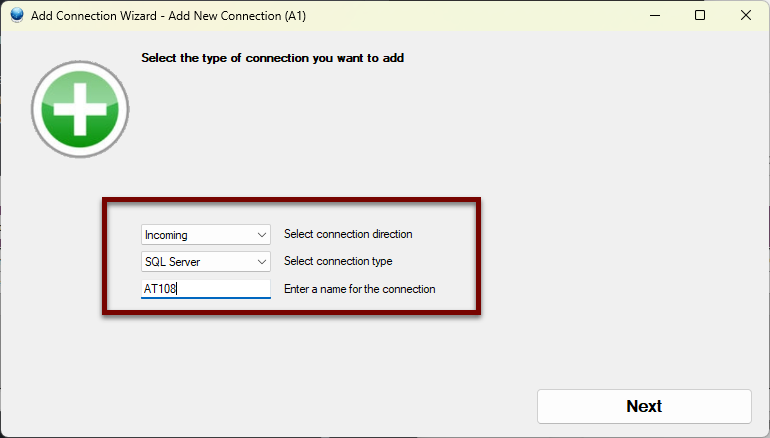
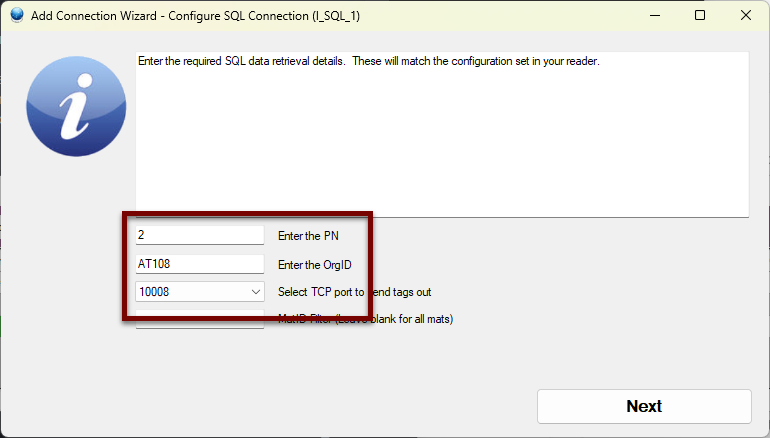
Remember to Name the connection - Match this with FinishLynx (Ususally AT and the last 3 digits of IP address.
Match the TCP Port to match the digits of the IP address.
- Downloads:
File & Data Handling
Mapping Drives
- Maps local folders or servers as network drives.
- Useful for accessing shared meet files across multiple machines.
- Standard convention:
Z:→ ResultsY:→ Backup
WinSCP
- Securely transfers files to/from readers and servers.
- Example: pulling chip reader logs for backup.
- Save site profiles for faster reconnection.
Remote Access & Support
Splashtop
- Remote desktop software to access meet computers from offsite.
- Key Uses:
- Tech support when you aren’t physically present.
- Remote troubleshooting during live events.
- Can use either 9 digit SOS code for non-company computers.